Why Is My WordPress Site So Slow? 7 Common Causes and Fixes
You click the link to your own website — and wait. The page loads slowly, images appear one by one, and by the time everything is ready you have already lost patience.
Your visitors feel the same, and most of them will not wait. A slow site loses visitors, and Google counts speed as part of how it judges a page: its Core Web Vitals measure how fast the main content appears, how quickly the page responds to clicks, and how much the layout moves while loading.
Most slow WordPress sites are slow for a small number of fixable reasons. Below is the problem in plain English, the usual causes, and the fixes in the order that gives the biggest improvement first.
Watch the Video
Watch the video version of this guide:
Who Is Affected
Any WordPress site can become slow: a small business website, a blog, or an online store. Visitors on phones and mobile data feel it most, but a slow site frustrates desktop visitors too.
Slowness can creep in gradually, as a site grows: more plugins, more images, more pages. Or it can appear suddenly, right after a plugin update, a new plugin, or a change on the hosting account. If your site was fast last month and slow today, something changed — and the steps below will help you find what.
What Causes It
The most common causes, in the order that usually matters most:
- No caching — WordPress rebuilds every page from scratch for every visitor.
- Heavy images — phone photos uploaded at full size but displayed small.
- Too many plugins — each one adds code, database queries, and extra files.
- Slow hosting — hundreds of websites sharing one cheap server.
- A bloated database — old revisions, spam comments, and expired temporary data.
- Third-party scripts — chat widgets, trackers, and embeds loading extra files.
- A heavy theme — large CSS and JavaScript files loaded on every page.
The Fix, Step by Step
Do these steps in this order, and change one thing at a time. Make a backup first if you can, and test the site after each step so you know what helped.
Step 1: Measure your speed first
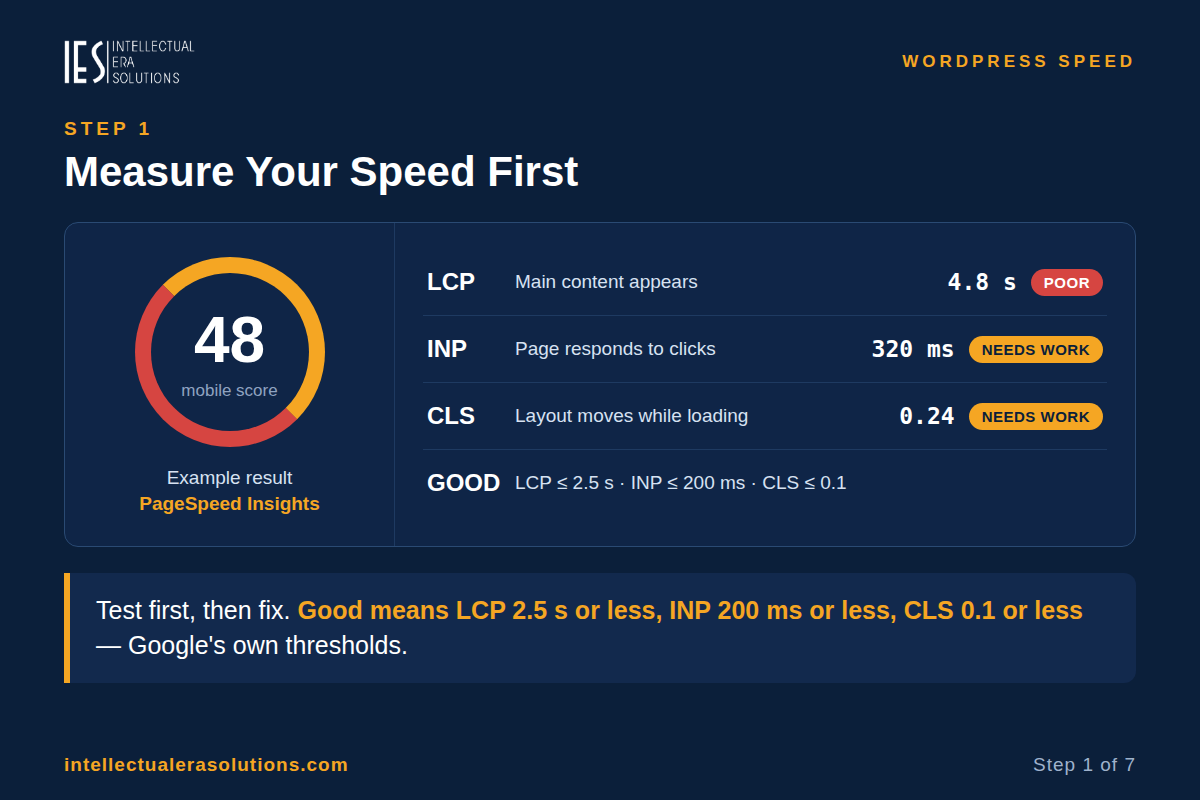
Use Google’s free PageSpeed Insights tool (pagespeed.web.dev) and test your homepage and one typical post, on mobile. Write down these three numbers:
- LCP (Largest Contentful Paint) — how long the main content takes to appear. Good is 2.5 seconds or less.
- INP (Interaction to Next Paint) — how quickly the page responds when someone clicks or taps. Good is 200 milliseconds or less.
- CLS (Cumulative Layout Shift) — how much the layout moves around while loading. Good is 0.1 or less.
These are Google’s own thresholds, measured on real visits. Test again after each fix below, so you can see what actually worked.
Step 2: Turn on page caching
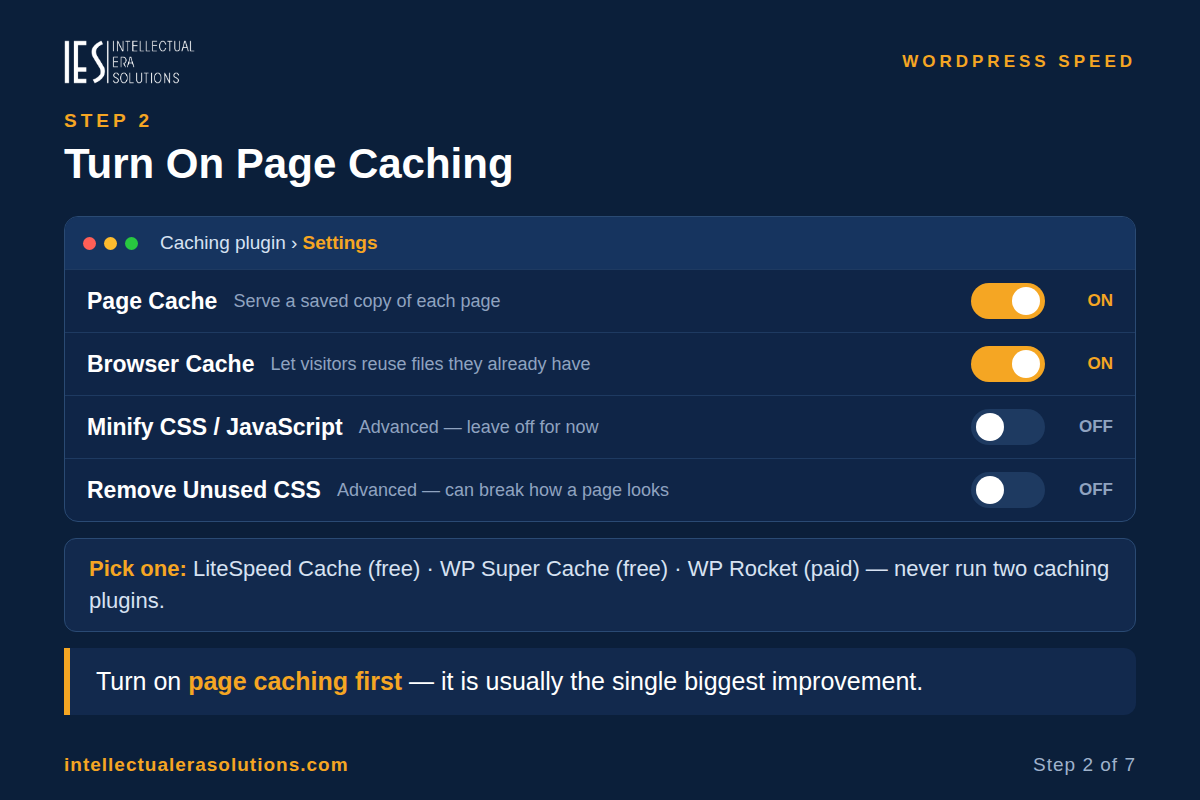
This is usually the single biggest improvement. A caching plugin saves a ready-made copy of each page, so WordPress serves that copy instead of rebuilding the page for every visitor.
Install one caching plugin — never two, because two caching plugins will conflict with each other:
- LiteSpeed Cache (free) if your host runs LiteSpeed servers — ask your host if you are not sure.
- WP Super Cache (free) on any other host.
- WP Rocket (paid) if you want an easy all-in-one option.
Turn on basic page caching first. Leave the advanced options — minifying and combining CSS and JavaScript, “remove unused CSS” — switched off for now; they can break how a page looks. Clear the cache after you change a setting, and test the site.
Step 3: Shrink your images
Images are usually the heaviest part of a page, so this step often makes the biggest visible difference.
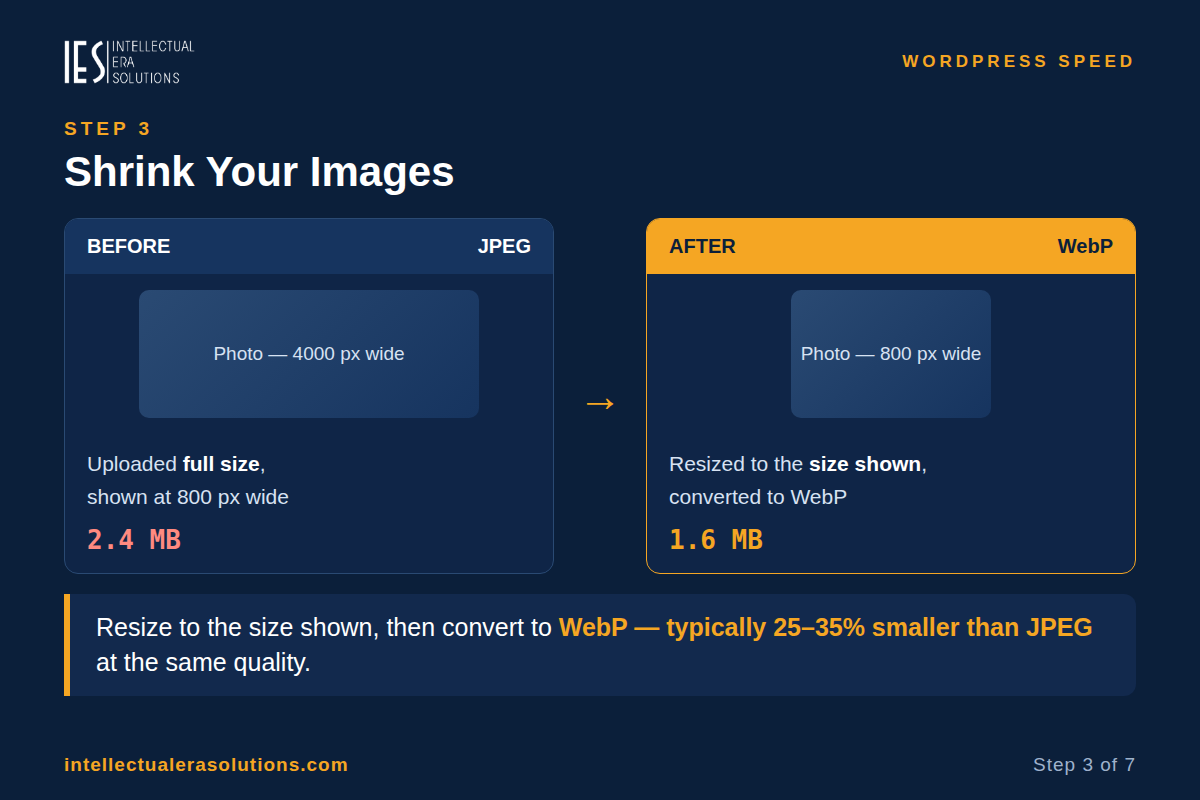
- Resize before uploading. An image only needs to be as wide as the space it will be shown in — a photo displayed at 800 pixels wide does not need to be 4,000 pixels wide.
- Use WebP format. WebP files are typically 25–35% smaller than JPEG at the same visible quality, and all modern browsers support WebP.
- Compress. Use one image tool — a plugin such as Smush, ShortPixel, or Imagify, or your caching plugin’s image feature — not two. Let it compress new uploads automatically, then run it over your older images in small batches.
- Keep lazy loading on for images below the fold. WordPress lazy-loads images by default (since version 5.5). But do not lazy-load your main hero image — delaying it makes your LCP score worse.
Step 4: Remove plugins you do not need
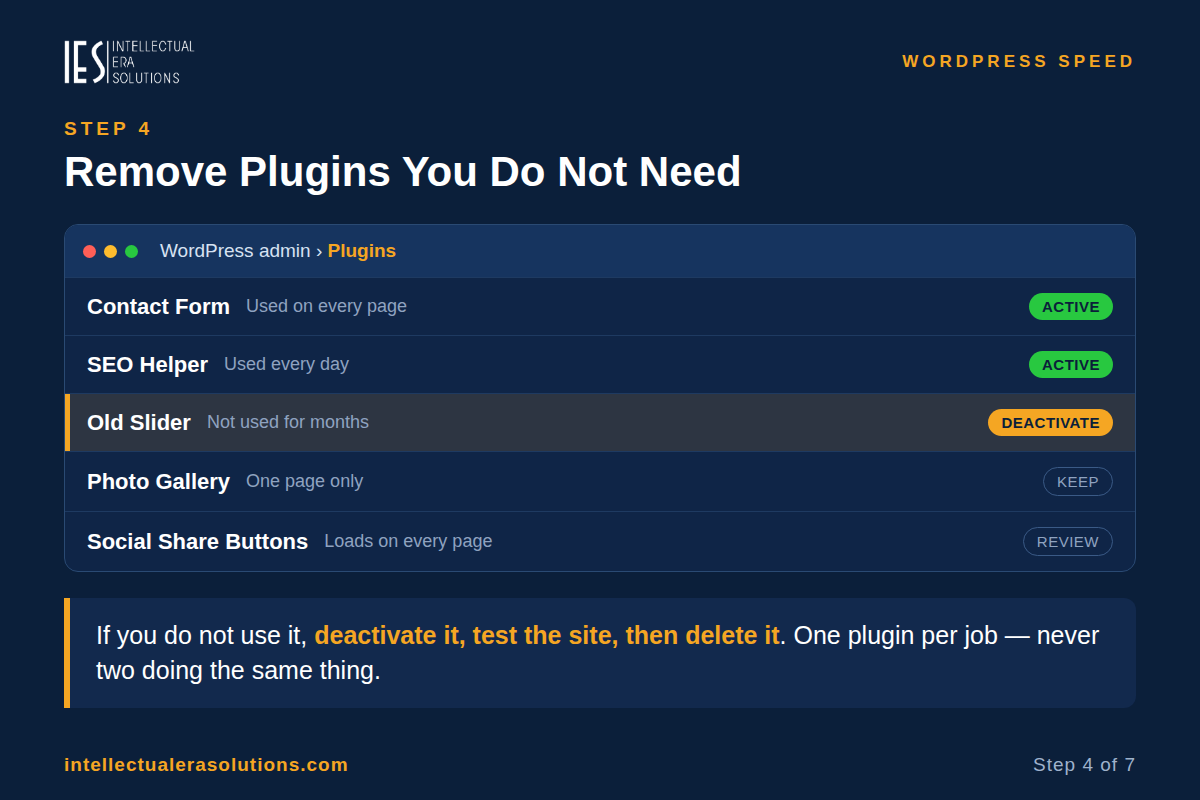
Go to Plugins in your admin area. For each plugin, ask: do I actually use this? If not, deactivate it, test the site, and then delete it.
Two rules that prevent trouble:
- One plugin per job. Two caching plugins, two image optimisers, or two security plugins doing the same work will slow the site down and can break pages.
- Deactivate before you delete. Deactivating does not delete a plugin’s settings — they return if you reactivate it. Deleting sometimes removes them, so only delete once you are sure.
If the site suddenly became slow, the last plugin installed or updated is the first suspect. If a plugin broke the site completely, see our White Screen of Death guide for the safe way to find the guilty plugin.
Step 5: Clean the database
Back up first. Then remove the clutter that builds up over time: old post revisions, spam comments, and expired temporary data (called transients).
The safest way is your caching plugin’s built-in database cleanup, or a dedicated plugin such as WP-Optimize. Run it, then test the site. Do not delete database tables by hand — deleting the wrong table can break the whole site.
Step 6: Check your hosting and PHP version
If the server is slow to answer, the fixes above can only help so much. In PageSpeed Insights, check the server response time (TTFB). If it stays above roughly 0.8 seconds even with caching on, your hosting is the bottleneck.
Ask your hosting provider three questions:
- What PHP version is the site running on? WordPress recommends a current PHP version — 8.1 or newer, and 8.3 is the current recommendation. Older PHP is slower and no longer gets security fixes.
- Is the site on shared hosting with many other sites on the same server?
- Is the server in a country far from most of your visitors?
Moving hosts is a bigger job, so do the other steps first. But if the server itself is the problem, no plugin will fix it.
Step 7: Cut third-party scripts and use a CDN
Look at what else loads on your pages: a chat widget, a tracking code, a social media feed, an advert. Each one loads files from another company’s server. Remove the ones you do not need, and use your caching plugin’s “delay JavaScript” setting for the ones you keep, so they load after the page itself.
A CDN (content delivery network) also helps, especially for visitors far away. A CDN keeps copies of your images and files on servers around the world and serves each visitor from the nearest one. Cloudflare offers a free plan that covers this for a small site. After turning it on, test the site again and check that images and styles still load correctly.
How to Know It Is Working
Test the same pages again in PageSpeed Insights after each fix. Look at the LCP number first — it is the one visitors feel most.
For the longer view, check Google Search Console under Experience → Core Web Vitals. It shows the same three numbers measured on real visits over the last 28 days. That real-user data is what Google actually uses — give it a few weeks after your fixes.
Frequently Asked Questions
Will a caching plugin alone fix my slow site?
Often it is the biggest single improvement, but not always. If your hosting is the bottleneck, or your images are several megabytes each, caching alone will not be enough. That is why Step 1 says measure first: the test tells you what the main problem is.
Is it safe to delete plugins?
Yes, if you deactivate first and test the site before deleting. Deactivating a plugin does not delete its settings. Deleting sometimes does, so only delete a plugin once you are sure you do not need it again.
Do I need to pay for speed tools?
No. The free options cover everything in this guide: LiteSpeed Cache or WP Super Cache for caching, Smush or ShortPixel’s free tier for images, and Cloudflare’s free plan for a CDN. Paid tools such as WP Rocket are a convenience, not a requirement.
My site was fast and suddenly became slow. What changed?
Think about what changed just before it slowed down: a plugin or theme update, a new plugin, new large images, or a change on your hosting account. Undo or disable the most recent change first — usually the last plugin updated. If the admin area is broken too, work through the steps in our White Screen of Death guide instead.
Need Help Making Your WordPress Site Faster?
A slow site costs you visitors, and finding the cause can take time — especially when the problem is the hosting, the theme, or a plugin conflict. If the steps above have not made enough difference, or you would rather not change settings yourself, we can help. Intellectual Era Solutions provides WordPress maintenance and web design services, with WordPress development, troubleshooting, and IT consulting for clients worldwide.
Contact us through our website, or email us at info@intellectualerasolutions.com, and tell us how slow the site feels and when it started. We will find the cause and speed it up safely.