WordPress White Screen of Death: Causes and How to Fix It
You open your website and see nothing. No error message, no homepage, no login page — just a blank white screen.
This is the WordPress White Screen of Death, often shortened to WSOD. It looks serious, and it is disruptive, but it is usually fixable — and your content is almost always still there. The blank page means WordPress hit a problem it could not display, not that your posts and pages have been deleted.
Below is the problem in plain English, the usual causes, and the safe order to fix it.
Watch the Video
Watch the video version of this guide:
Who Is Affected
Any WordPress site can show a white screen, on the front of the site, in the admin area, or on both. It often appears right after a change: a plugin or theme update, a new plugin install, an edit to a file, or a change on the hosting account.
If only one page is blank, the cause is usually tied to that page. If the whole site and the admin area are blank, the cause is usually a plugin, a theme, or a server limit.
What Causes It
The most common causes, in the order you should suspect them:
- A plugin conflict. A plugin that is out of date, incompatible with your WordPress version, or conflicting with another plugin can stop WordPress from loading.
- A theme problem. A faulty theme, or a theme update that did not finish cleanly, can break the site in the same way.
- A PHP memory limit. WordPress runs out of the memory your hosting allows it to use, often because of a heavy plugin or a large page, and stops before it can show anything.
- A broken file after an edit. A small mistake in a file that was edited by hand — for example in wp-config.php or a theme file — can stop the whole site.
- A corrupted or incomplete update. An update that stopped halfway can leave a plugin, theme, or core file incomplete.
A white screen on its own does not mean your site was hacked. A hacked site can show a white screen, but so can a simple plugin conflict. Do not assume the worst — work through the steps below and look at what you find.
The Fix, Step by Step
Do these steps in this exact order. Do not delete files at random, and make a backup first if you can still reach your hosting file manager.
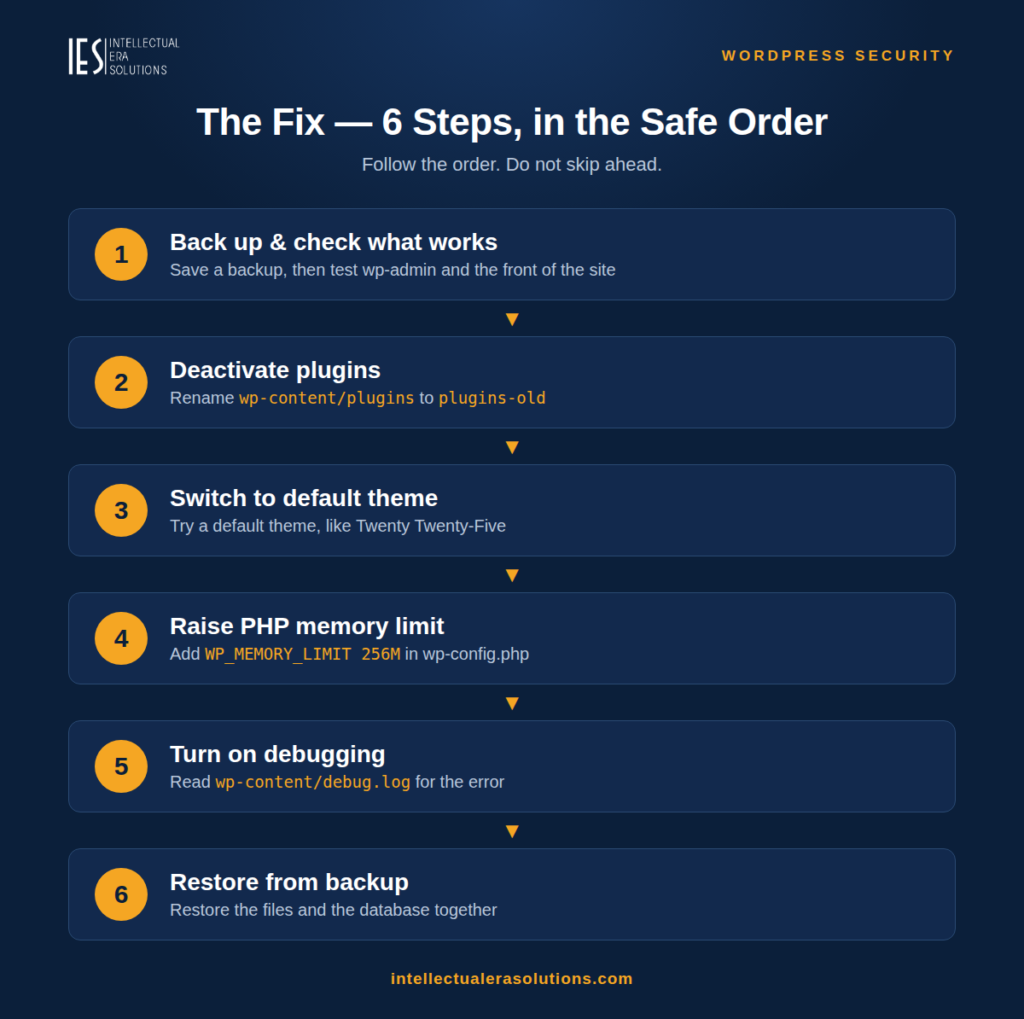
Step 1: Back up what you can, and check what still works
If you have a recent backup, keep it safe and do not overwrite it. Then check two things:
- Does your admin area (yoursite.com/wp-admin) load, or is it white too?
- Does the front of the site load on any page, or is every page blank?
If the admin area works but the front does not, the problem is likely in the theme. If both are blank, start with plugins in Step 2. Write down what you find — it helps if you need professional help later.
Step 2: Deactivate all plugins safely
If you can reach the admin area, go to Plugins and deactivate them all, then check the site. If it loads, reactivate the plugins one at a time, checking the site after each one, until the white screen returns. The last plugin you reactivated is the likely cause — leave it off and look for an update or a replacement.
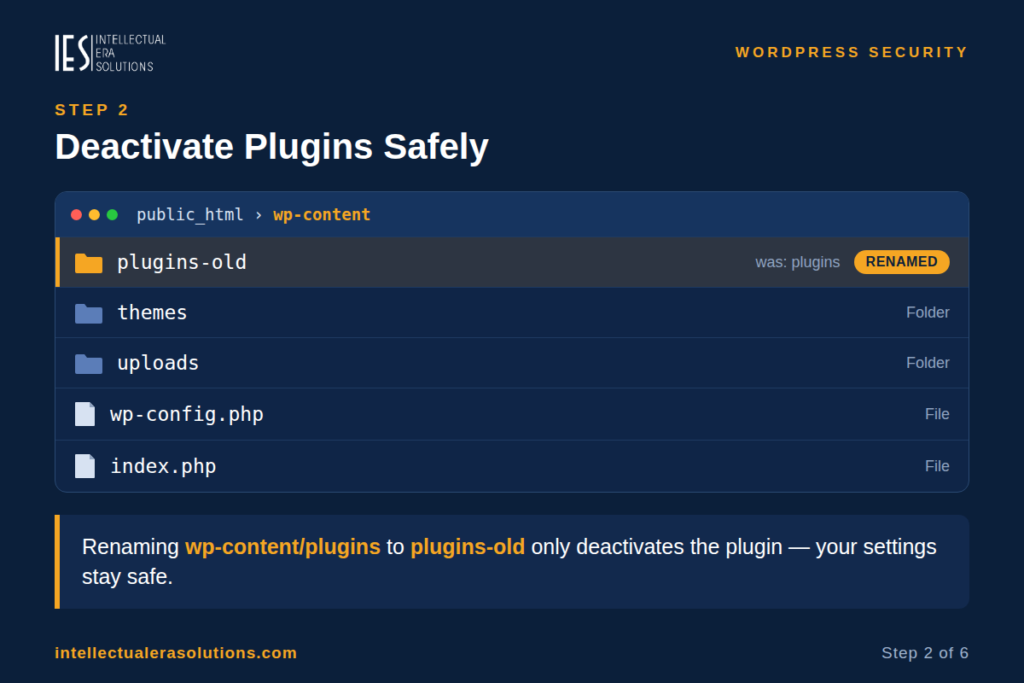
If you cannot reach the admin area, do the same thing through your hosting file manager or FTP. Find the wp-content/plugins folder and rename it temporarily — for example to plugins-old. WordPress will then load with no plugins active. Check the site. If it loads, rename the folder back to plugins, then rename the folders inside it one at a time to find the plugin that breaks the site. Renaming a plugin folder only deactivates that plugin; it does not delete its settings.
Step 3: Switch to a default theme
If the site is still blank with all plugins off, the theme is the next suspect. In the admin area, switch to a default WordPress theme such as Twenty Twenty-Five and check the site.
If you cannot reach the admin area, rename your active theme’s folder inside wp-content/themes through the file manager or FTP. WordPress will fall back to a default theme if one is installed. If the site loads, your theme is the cause — check for a theme update, or restore the theme from a backup.
Step 4: Increase the PHP memory limit
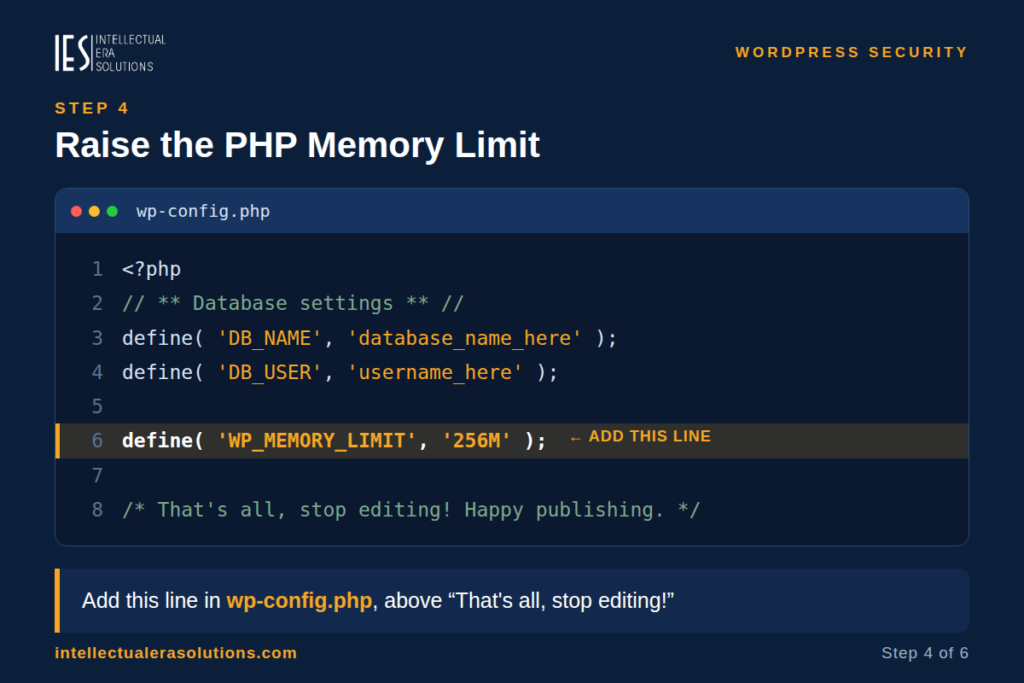
If the site is still blank, it may be running out of memory. In your wp-config.php file, add this line above the line that says “That’s all, stop editing!”:
define( 'WP_MEMORY_LIMIT', '256M' );Save the file and check the site. If your hosting plan allows less memory than this, the limit will stay at what the host allows — in that case, ask your hosting provider whether the memory limit can be raised, or whether a heavy plugin needs to be removed.
Step 5: Turn on debugging to see the real error
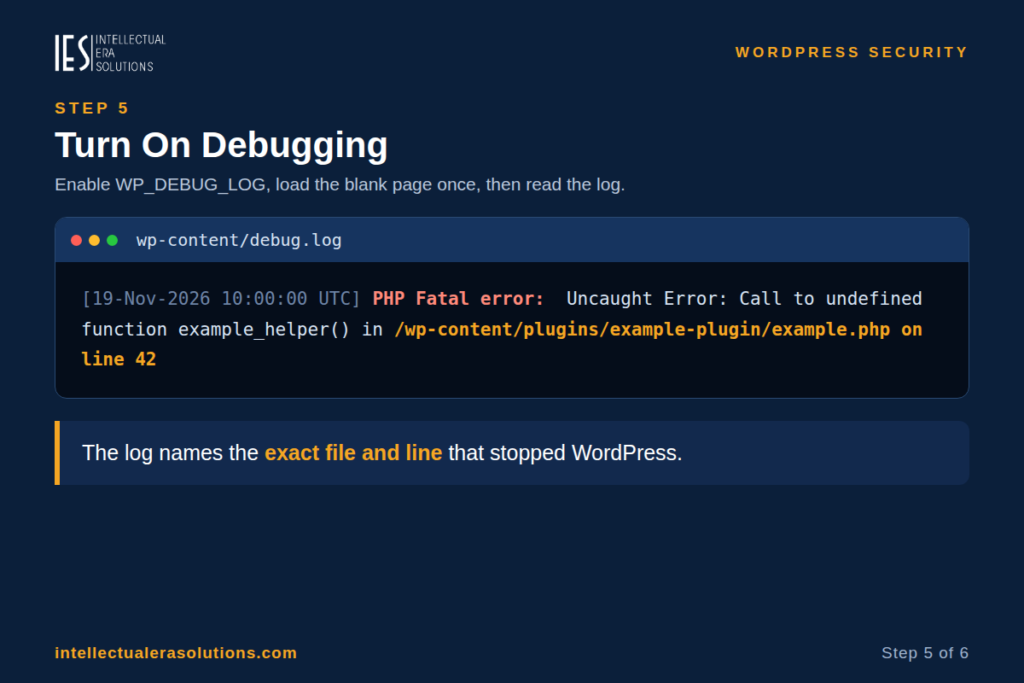
If the steps above have not found the cause, you need to see the error WordPress is hiding. In wp-config.php, find the line with WP_DEBUG and set it to true, or add these lines if they are not there:
define( 'WP_DEBUG', true );
define( 'WP_DEBUG_LOG', true );
define( 'WP_DEBUG_DISPLAY', false );
Then load the blank page once and check the wp-content/debug.log file. It will name the file and the line where WordPress stopped. That tells you — or a professional — exactly which plugin, theme, or file is responsible. Turn debugging off again afterwards by setting WP_DEBUG back to false, because a debug log left on can grow large and can expose details about your site.
Step 6: Restore from backup if a recent change broke it
If the white screen started right after an edit, an update, or a file change, and the steps above have not fixed it, restore the site from the backup made before that change. Restore both the files and the database together. Do not restore only half of a backup — files and database belong together.
If you have no backup, do not keep guessing and deleting. Get professional help while the evidence is still there.
How to Check If Your Content Is Safe
Your posts, pages, and images are stored in the database and in the wp-content/uploads folder, not in the page that is failing to load. A white screen very rarely means content is gone.
You can check this without fixing the site: in your hosting file manager, look in wp-content/uploads — your images should still be there. If you can reach your hosting database tool, your posts table should still hold your content. If both are intact, the site can almost always be brought back.
Frequently Asked Questions
I just updated a plugin and the site went white. What do I do first?
Deactivate that plugin first, using Step 2. An update that conflicts with your WordPress version or another plugin is the most common trigger, and removing the new version usually brings the site straight back.
Will deactivating my plugins delete my settings?
No. Deactivating a plugin — including by renaming its folder — does not delete its settings. They stay in the database and return when you reactivate it. Deleting a plugin is different: some plugins remove their settings when deleted, so deactivate first and only delete when you are sure.
My admin area works but my website is white. Is that a different problem?
It is usually a theme problem, because the admin area does not use your site’s theme. Try Step 3 first: switch to a default theme and see if the front of the site loads.
Could a white screen mean my site was hacked?
It can, but it is not the most likely cause. A plugin conflict, a theme fault, or a memory limit is far more common. If the debug log points to a file you do not recognise, or files have appeared that you did not add, stop and get a professional security check before deleting anything — you could destroy evidence.
Need Help Fixing Your WordPress Site?
A white screen is stressful, especially when your business depends on the site. If the steps above have not found the cause, or you would rather not edit files yourself, we can help. Intellectual Era Solutions provides WordPress development, maintenance, troubleshooting, and IT consulting for clients worldwide.
Contact us through our website, or email us at info@intellectualerasolutions.com, and tell us when the white screen started and what changed just before it. We will find the cause and bring your site back safely.