My WordPress Site Was Hacked: What to Do First (and What NOT to Do)
You open your own website and something is wrong. Visitors are sent to a spam site. Strange pages appear in Google. A red warning tells visitors the site is dangerous. Or your host has switched the site off.
Your first instinct is to delete everything and start again. Don’t — deleting in a panic destroys the evidence, and the hole stays open, so the same hack comes back.
A hacked WordPress site can be fixed, but the order matters. The steps below follow the order in WordPress.org’s own “My site was hacked” guide: protect the evidence first, then lock the doors, then clean the site, then close the way in.
Watch the Video
Watch the short video below for a quick walkthrough of the safe first steps — in the right order.
Who Is Affected
Any WordPress site can be hacked: a small business website, a blog, or an online store. Hackers rarely pick victims by hand — most attacks are automated, scanning the internet for sites with an outdated plugin, a weak password, or an old WordPress version. A small site is not safe just because it is small.
They get in through the weakest part of the site: an outdated plugin or theme, a weak or reused password, an old WordPress version, a login stolen by malware on the owner’s computer, or a nulled (pirated) plugin with a backdoor already inside. (An unpatched security flaw is one of the ways in — see our guide on the WordPress 7.1.4 security flaw: https://intellectualerasolutions.com/wordpress-714-vulnerability-cve-2026-119977-fix/)
How to Tell If Your Site Was Hacked
Not every hack is obvious. Most are quiet on purpose: a hacked site is worth more to criminals while it keeps running. Sucuri’s 2024 report found only 0.8% of infected sites had a defaced homepage — the rest looked normal to their owners.
WordPress.org’s clear signs: a warning from Google or Bing, your host disabling the site, a malware flag, visitors’ antivirus warnings, being told your site attacks other sites, new users you did not create, or visible damage.
And the quieter signs, which are more common:
- Your site redirects visitors to spam sites. It works fine for you, but visitors — especially from Google — are sent elsewhere. The redirect often hides from logged-in admins, so check in a private window while logged out.
- Strange pages in Google’s results. Search for site:yourdomain.com. Pages you never created — often in another language, or selling products you don’t sell — are a classic sign.
- The site suddenly runs slowly or uses far more server power than usual — hidden scripts use your server to do the attacker’s work.
- Files you don’t recognise, especially PHP files in the uploads folder, which should hold only images and media.
If any of these is true, treat the site as hacked and work through the steps below. If unsure, run the free scan in Step 4.
What NOT to Do First
- Don’t delete files in a panic. Deleted files can’t be examined, and you may delete something the site needs.
- Don’t restore a backup yet. A backup from after the hack started may already be infected, and restoring it destroys your evidence.
- Don’t just change one password and call it done. If the attacker left a backdoor file, they don’t need your password to get back in.
- Don’t use the dashboard’s “Reinstall WordPress” button. It only overwrites existing files — hacks often add new files it leaves untouched.
The Fix, Step by Step
Work through these steps in order. Don’t skip ahead to cleaning — every step before it protects you or the evidence.
Step 1: Write down what you see
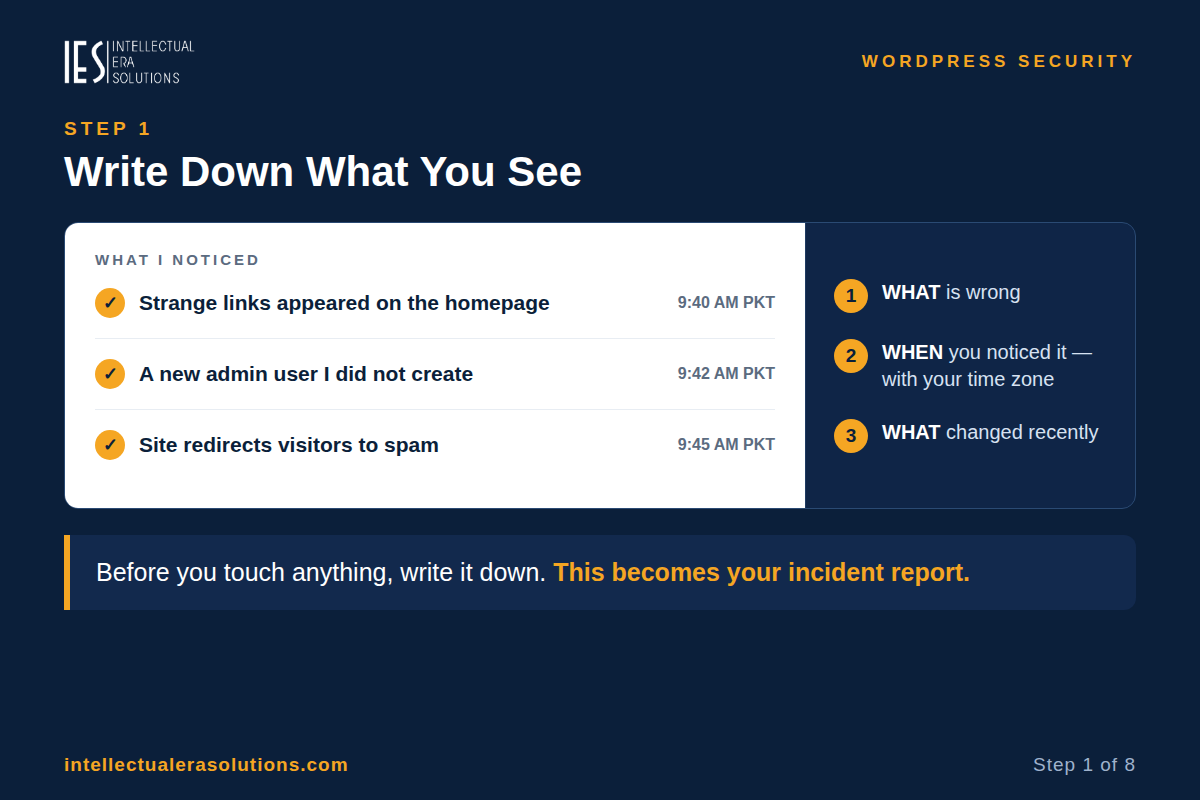
Before you touch anything, write down what is wrong, when you noticed it (with your time zone), and what changed recently — a new plugin, a theme edit, a new staff login. WordPress.org calls this the first step, and it becomes your incident report.
Step 2: Tell your hosting provider
Message your host and say the site may be hacked. Ask whether they found malware, suspended anything, or started a cleanup — and ask for their logs. Ask early: some hosts only keep logs for a short time.
Step 3: Take a copy of the site as it is
Copy the compromised site’s files and database as they are now, infection included. The copy is your evidence, and your safety net if the cleanup breaks something. Label it “infected” so nobody restores it by mistake.
Step 4: Scan the site — and your own computer
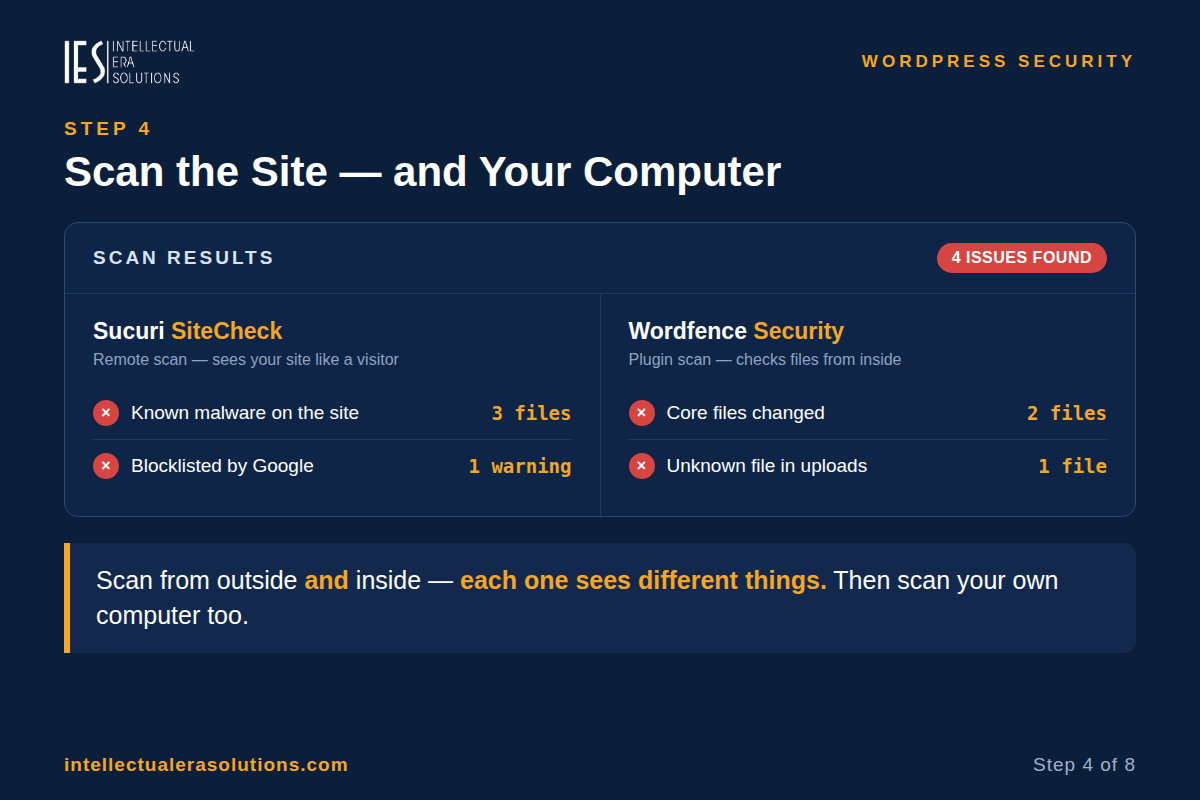
Run two kinds of scan — each one sees different things:
- A remote scan, from outside the site. Sucuri SiteCheck (sitecheck.sucuri.net) is free: it checks your site the way a visitor sees it, for known malware and blocklist warnings.
- A plugin scan, from inside the site. Install the free Wordfence Security plugin and run a scan (Wordfence → Scan). It compares your core, plugin and theme files with the official versions and lists anything changed, added, or matching known malware.
Also run an antivirus scan on your own computer — stolen passwords often come from malware on the owner’s laptop.
Step 5: Lock every door
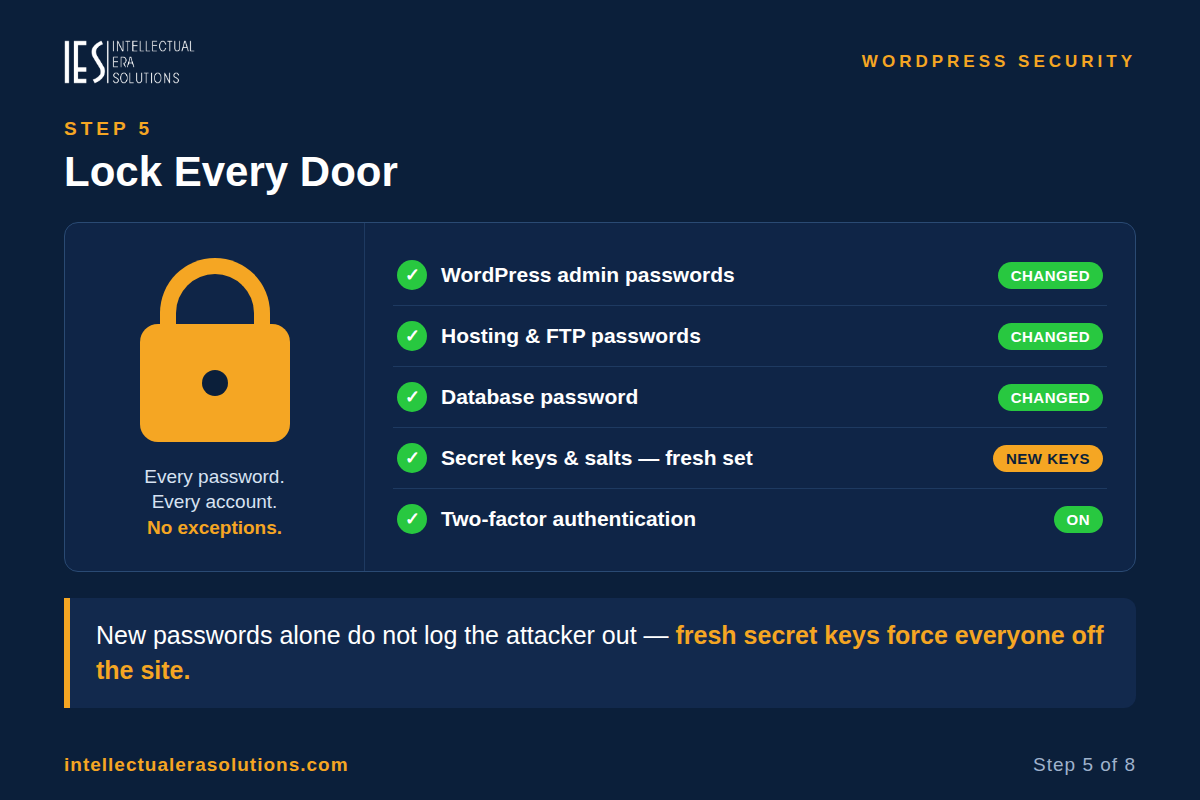
Change every password that opens the site — WordPress admin, hosting account, FTP or SFTP, and the database — for every user with access. Use long, unique passwords.
Then do the step most people skip: replace the secret keys and salts in your wp-config.php file with a fresh set from WordPress’s key generator (api.wordpress.org/secret-key/1.1/salt/). That forces everyone logged in — including the attacker — off the site. A new password alone does not do that.
Check Users in the admin for administrator accounts you did not create, and remove them. Then turn on two-factor authentication for admin logins.
Step 6: Clean the site
You have three options:
- Restore a clean backup — if you have one from before the hack started. Only restore it after Step 3’s copy is safe, and only if you also do Step 8, or the same attack will work again.
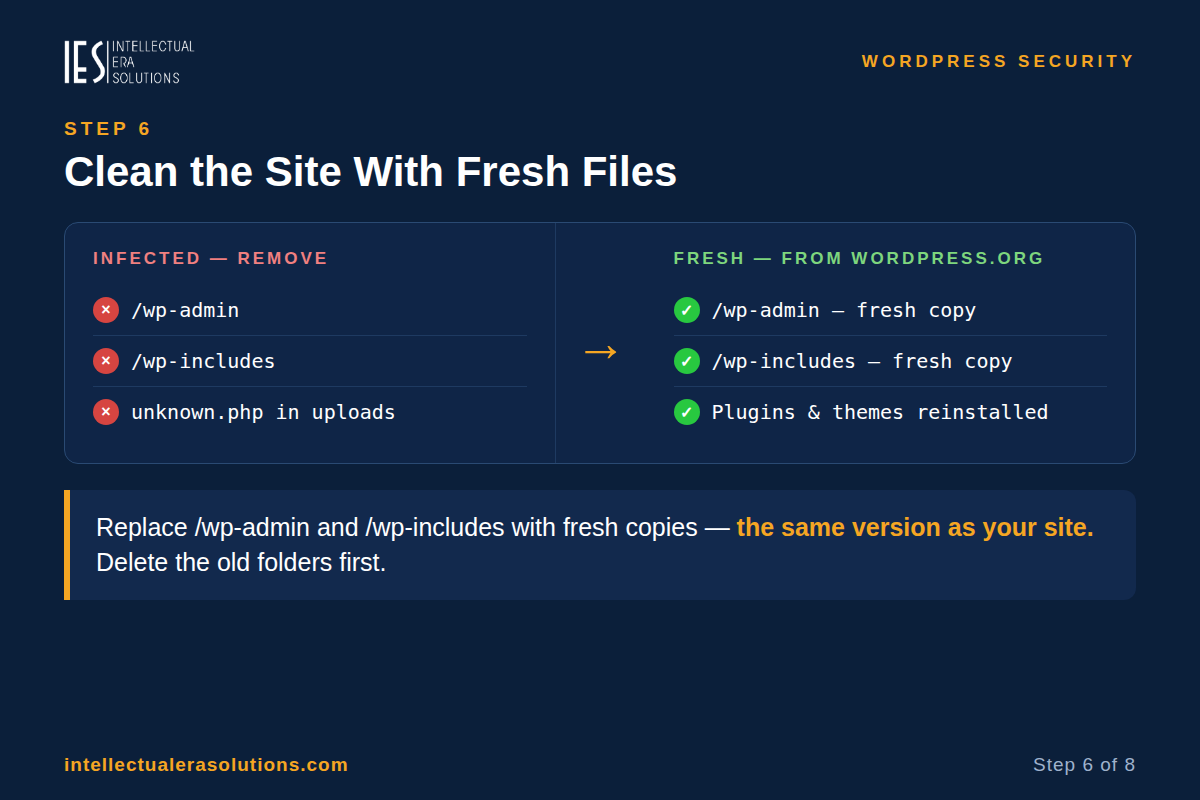
- Clean it yourself — download the same WordPress version your site runs from WordPress.org, and replace the /wp-admin and /wp-includes folders by FTP or SFTP (delete the old folders first, then upload the fresh ones). Use the same version — an older or newer one can break the site. Then delete each plugin and theme and reinstall a fresh copy from its official source, and remove anything you don’t use. Check .htaccess, index.php, header.php, footer.php, and functions.php for code you didn’t add, and look for PHP files in the uploads folder, where only media should live.
- Hire a professional — the safe option if the site takes payments, holds customer data, or the infection keeps coming back. Your host may offer cleanup.
Don’t delete anything until the Step 3 copy is safe — and a plugin you only deactivate can still be run directly, so delete what you don’t use.
If the site shows only a blank white page after the hack, work through our White Screen of Death guide as well: https://intellectualerasolutions.com/wordpress-white-screen-of-death-fix/
Step 7: Update everything — then change the passwords again
Once the site is clean, update WordPress, then every plugin and theme — older versions are more prone to hacks. Then change all the passwords a second time: a login captured during the cleanup must not reopen the site.
Step 8: Find how they got in — and clear Google’s warning
This is the step people skip, and why hacks come back. Check your host’s logs: an outdated plugin, a reused password, an old admin account, a file you didn’t recognise? Understand how they got in so it cannot happen the same way again.
If Google flagged your site, open Google Search Console → Security Issues, fix every issue it lists, then choose Request Review and explain what was wrong, what you changed, and the result. Google removes the warning once the site is clean.
How to Know It Is Fixed
- Run a second full scan. Run Wordfence and Sucuri SiteCheck again after cleaning. Both must come back clean — if either still finds something, the cleanup is not finished.
- Check Google’s view. Search site:yourdomain.com and confirm the strange pages are gone and Search Console’s Security Issues page is clear.
- Watch it for a week. If symptoms return — redirects, strange pages, new admin users — the hole is still open, usually a missed backdoor file. Go back to Step 6, or get professional help.
Frequently Asked Questions
Should I just delete the hacked files?
Not first. Take a copy of the site (Step 3), then delete only files you can identify as malicious. Deleting blindly destroys evidence and can break the site — if unsure, leave it for a scan or a professional.
Will changing my password fix the hack?
No, not on its own. A password change stops logins with a stolen password, but a backdoor file lets them in without any password. You must also clean the site (Step 6) and close the way in (Step 8).
Can I just restore a backup?
Yes — if the backup is from before the hack started. A hack can sit unnoticed for days or weeks, so a recent backup may already be infected. Copy the hacked site first, restore the clean backup, then still do Steps 5, 7 and 8.
How do I stop it happening again?
Update WordPress, plugins and themes promptly; delete what you don’t use; use long, unique passwords and two-factor authentication for every admin; limit login attempts; and keep backups stored away from the site. A security plugin such as Wordfence or Sucuri can watch for changed files and block repeated logins.
Need Help Cleaning a Hacked WordPress Site?
A hacked site is stressful, and cleaning it safely takes time — especially when customer data or payments are involved. If you would rather not do it yourself, we can help. Intellectual Era Solutions provides WordPress maintenance (https://intellectualerasolutions.com/website-maintenance/) and WordPress security cleanup, with WordPress development, troubleshooting, and IT consulting for clients worldwide.
Contact us through our website (https://intellectualerasolutions.com/contact/), or email us at info@intellectualerasolutions.com, and tell us what you are seeing — redirects, a Google warning, strange users, a host suspension — and when it started. We will find the way in, clean the site, and close it properly.