Switch AI Assistants Without Losing What They Know About You
You have spent months talking to an AI assistant. It knows your business, your projects, the way you like answers written, and the names of the people you work with. Then you switch to a different AI, and all of that is gone. The new assistant treats you like a stranger. You have to explain everything again, correct the same mistakes again, and rebuild the same shared understanding from zero.
That is the cost of starting from scratch. The first weeks with a new assistant are slow, not because the new tool is worse, but because it does not know you yet. Every answer needs extra background, and every instruction needs repeating.
There is a simple fix. Before you leave the old assistant, ask it to write down what it knows about you, in a format the new assistant can read. You do that with one prompt. It gives you back a short, structured summary. You review it, remove anything you do not want to share, and paste it into the new assistant. The whole job takes a few minutes.
This post gives you that prompt, exactly as written, and explains every part of it, so you can change it to fit your own needs.
Watch the Video
What the Prompt Does
The prompt asks your old AI assistant to do one job: look back at your past conversations and write a portable memory snapshot of what it reliably knows about you. Portable means the result is plain text, in Markdown, that you can copy anywhere. It is not tied to any one product, and it does not need any special tool.
The prompt is written so the summary is useful, not just long. It tells the old assistant to care about quality more than completeness, to skip anything it is not sure about, and to leave out one-off remarks. The result is meant to go verbatim into a new AI’s memory, so every rule in the prompt protects that purpose.
It also protects your privacy. The prompt tells the assistant to skip sensitive information, like health conditions and financial details, unless you explicitly asked it to remember those things. And because the summary comes back to you first, you get the final say. Nothing moves to the new assistant until you have read it and approved it.
What the prompt does not do is move your data automatically. It does not connect the two assistants or copy files. You are the one who carries the summary across, which is exactly why it is safe. You see everything before the new assistant sees anything.
The Prompt, in Full
Here is the prompt. Copy the whole block, including the section headings, and paste it into the AI assistant you are leaving.
You are helping me migrate context from one AI assistant to another. Your job is to compile, from our past conversations, a portable memory snapshot of what you reliably know about me. The output is going verbatim into a new AI's memory, so quality matters more than completeness.

OUTPUT RULES
- Output a single Markdown block using the section headers below. Omit any section you have nothing solid for — do not invent placeholders.
- Refer to me in the third person ("the user", "they") inside each bullet.
- One factual sentence per bullet. No transitions, no narrative.
- Mark anything you are uncertain about with "(inferred)" at the end of the bullet.
- Skip one-off statements unless they were clearly important.
- Skip sensitive information (health conditions, financial details, mental health) unless I explicitly asked you to remember it.
- Hard cap: 2000 words.

SECTIONS
## Identity
Name, pronouns, age range, current city / country, time zone, languages spoken.
## Profession & work
Role, company or self-employed, industry, team or function, key responsibilities. Tech stack and tools used daily if known.
## Communication preferences
Tone they want (casual / formal, blunt / warm). Preferred response length. Output format preferences (Markdown, plain text, code blocks). Things they have asked you to avoid.
## Recurring people
Partner, children, close family, friends, colleagues they mention regularly. First name + relationship + any salient detail.
## Health & dietary
Allergies, dietary restrictions, accessibility needs. Only include things they have stated themselves.
## Interests & hobbies
Topics they keep returning to. Sports, music, games, reading taste.
## Ongoing projects
Active personal or professional projects they have asked you to help with. State, goal, constraints.
## Working style & values
How they make decisions, what motivates them, what frustrates them. Things they have explicitly asked you to do or not do.
## Tools & environment
Devices, operating systems, apps, services, languages, frameworks they use regularly.
## Anything else durable
Anything important that does not fit above and is unlikely to change in the next year.
That is the whole prompt. The rest of this post explains what each part does, and how to change it.
How the Prompt Works, Line by Line
The prompt has three parts: the opening instruction, the output rules, and the sections. Each part has a job, and each part can be changed.
The opening instruction
The first two sentences tell the old assistant what the job is, and why quality matters. The word “reliably” does the heavy lifting: it tells the assistant to include only what it can stand behind, from your actual conversations, not what it guesses. Remove that word and the summary gets longer and less trustworthy.
The second sentence sets the standard: the output goes verbatim into a new AI’s memory, so a shorter, correct summary beats a long, shaky one. If you want a fuller summary and you are willing to check every line yourself, soften it to “quality and completeness both matter”, but then the review step becomes your job.
The output rules
The seven rules under OUTPUT RULES decide the shape of the summary. Here is what each one does, and how to change it.
Single Markdown block, same headings. One block, with the same headings every time, means you can paste it anywhere without reformatting. If your new assistant prefers a different format, change this line, for example “Output a single plain text block”. Keep it to one block either way, so nothing gets lost when you copy it.
Omit empty sections, do not invent placeholders. This stops the assistant from writing “Unknown” or making up filler where it knows nothing. An empty section is honest. A filled-in guess is not. If you would rather see which sections came back empty, add “and list the omitted sections by name at the end”.
Third person. The summary is written about you, for the new assistant to read. Third person (“the user prefers short answers”) keeps that clear. First person (“I prefer short answers”) can confuse a new assistant about who is speaking.
One factual sentence per bullet, no narrative. Each bullet carries one fact, and nothing else. No storytelling, no connecting sentences. If you want more detail on one topic, add a note under that section instead, for example “Give two or three bullets for the Ongoing projects section”.
Mark guesses with (inferred). When the assistant is not sure, it says so, right on the bullet, so you can check it during your review. To be stricter, change the rule to “Leave out anything you are uncertain about”.
Skip one-off statements. A single passing comment from one conversation is not part of who you are. This rule keeps those out, so the summary holds only the things that kept coming up. If one single event matters a lot to you, add it yourself after the summary is written.
Skip sensitive information. This is the privacy rule, and it is the one you should think about most. The examples in brackets are health conditions, financial details, and mental health. You can change this list to fit your own line. For a stricter rule, write “Skip all health, financial, and personal family information, even if I mentioned it”. To allow one kind of detail, name it, for example “You may include my dietary restrictions, but skip all other health information”. Be specific. Vague privacy rules get vague results.
Hard cap: 2000 words. The easiest rule to change. Two thousand words is enough for a full picture without becoming a document nobody reads. If your history with the old assistant is short, lower the cap to 1000 words. If you have years of conversations and many projects, raise it to 3000 words. Do not remove the cap entirely. Without a cap, the summary becomes harder to review and harder for the new assistant to use.
The sections
The ten sections under SECTIONS are the shape of the summary. Each heading is followed by a line that says what belongs under it. You do not need all ten, and you can add your own.
Identity, Profession and work, Tools and environment. These three describe who you are, what you do, and what you work with. Identity holds the basics: name, pronouns, age range, city and country, time zone, and languages. Profession and work holds your role, your company or whether you are self-employed, your industry, your team, and your daily tools. Tools and environment holds the devices, apps, services, and languages you use regularly. If you run a business, expand Profession and work with a line of your own, for example “Include the business name, what it sells, and who its customers are”.
Communication preferences, Working style and values. These two save the most time after a switch, because they capture how you like to work. Communication preferences holds tone, length, and format, plus anything you have asked an assistant to avoid. Working style and values holds how you decide, what motivates you, and what frustrates you. This is the section that makes the new assistant feel familiar fastest, because it captures how you think, not just what you do.
Recurring people, Health and dietary, Interests and hobbies. Recurring people holds the people you mention often, with first name, relationship, and one useful detail each. Health and dietary holds only what you stated yourself, like allergies or dietary needs. Because of the privacy rule above, this section will often come back empty, and that is fine. Interests and hobbies holds the topics you keep returning to.
Ongoing projects, Anything else durable. Ongoing projects holds your active projects, each with its state, its goal, and its constraints. If you have several projects, this section carries the most weight in the summary. You can add your own line here, for example “List each project with its current status and next step”. Anything else durable is the catch-all: anything important that does not fit above, and is unlikely to change in the next year.
How to add or remove a section
To remove a section, delete its heading and its description line from the prompt before you paste it. The assistant will simply not produce that section. To add a section, add a heading and a one-line description in the same style, anywhere in the list. For example, to add a section about your business, add this after Profession and work:
## My business
Business name, what it sells, who the customers are, current goals, and anything the assistant should know before giving business advice.
The order of the sections does not matter much, but keep related sections together. Identity first, work second, and the catch-all last is a sensible order.
What to leave out before you paste anything back
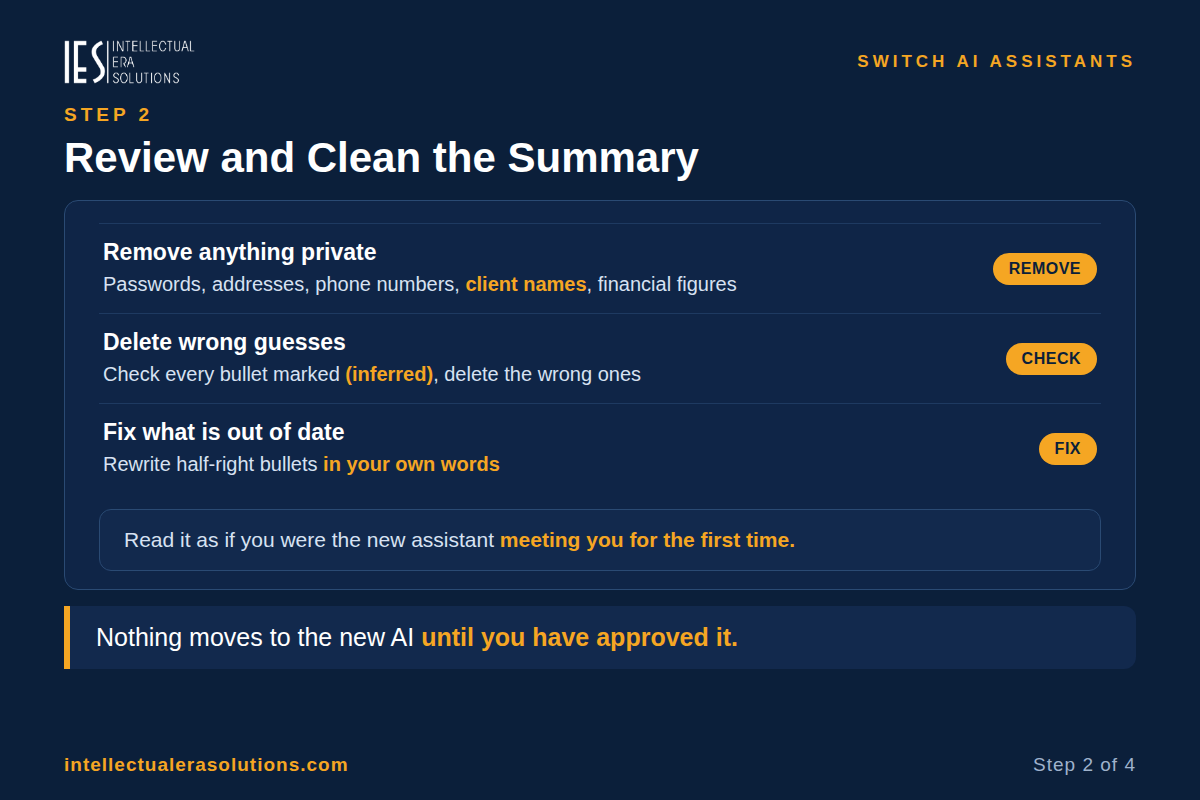
The review step is where you protect yourself, so do it properly. Read the whole summary once, slowly, and remove anything you would not want a new assistant to know. Start with the obvious: passwords, account numbers, addresses, phone numbers, and anything that identifies someone else. Then look for the less obvious: private family details, health information, financial figures, and the names of clients or projects you have not made public.
Check every bullet marked “(inferred)” and delete the ones that are wrong. If a bullet is half right, rewrite it in your own words. Finally, read the summary as if you were the new assistant meeting you for the first time. Does it describe the work you actually do now, not the work you did two years ago? Fix anything that is out of date, then paste it.
Use It in Four Steps
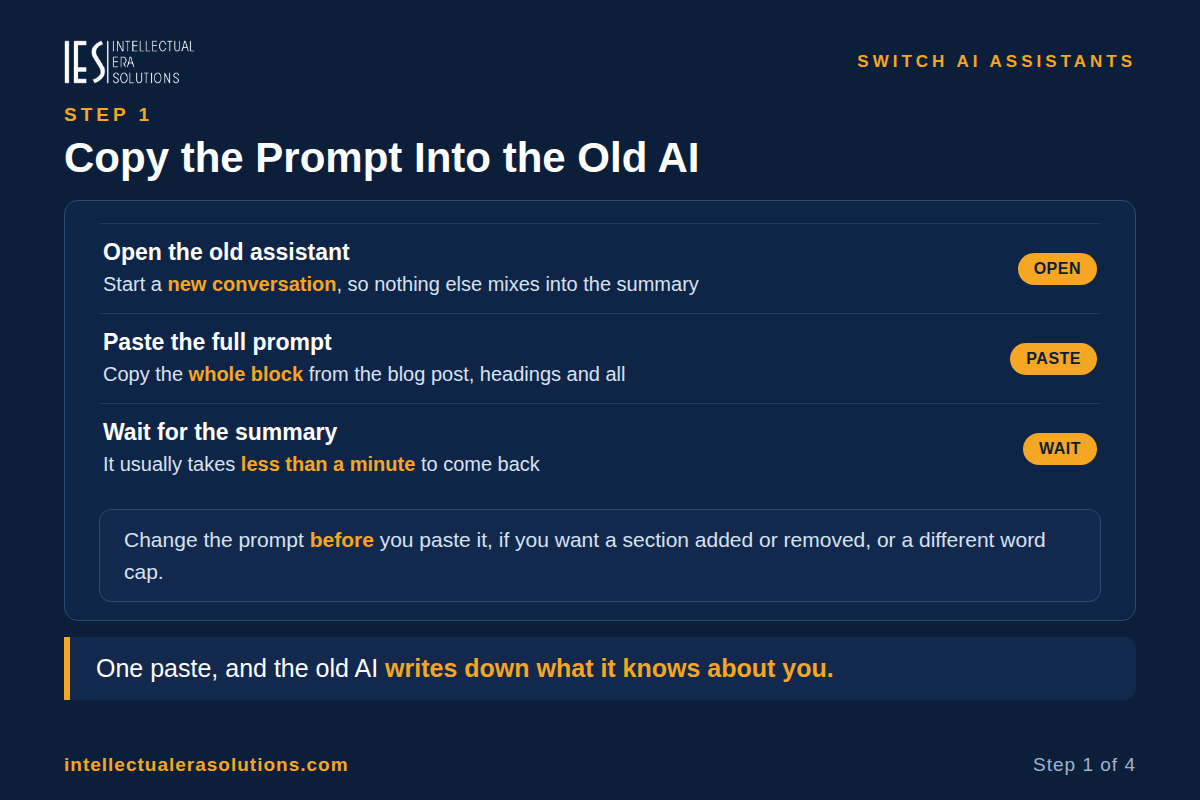
Step 1: Paste the prompt into the old assistant. Open the AI assistant you are leaving, start a new conversation, and paste the full prompt. Wait for the summary. It usually takes less than a minute.
Step 2: Review the summary. Read it line by line. Remove anything private, delete wrong bullets, and fix anything out of date. Do not skip this step.
Step 3: Paste the summary into the new assistant. Open the new assistant, start a new conversation, and paste the cleaned summary. Add one line of your own at the top, for example “This is background about me. Please remember it and use it in our conversations.” That tells the new assistant what the text is for.
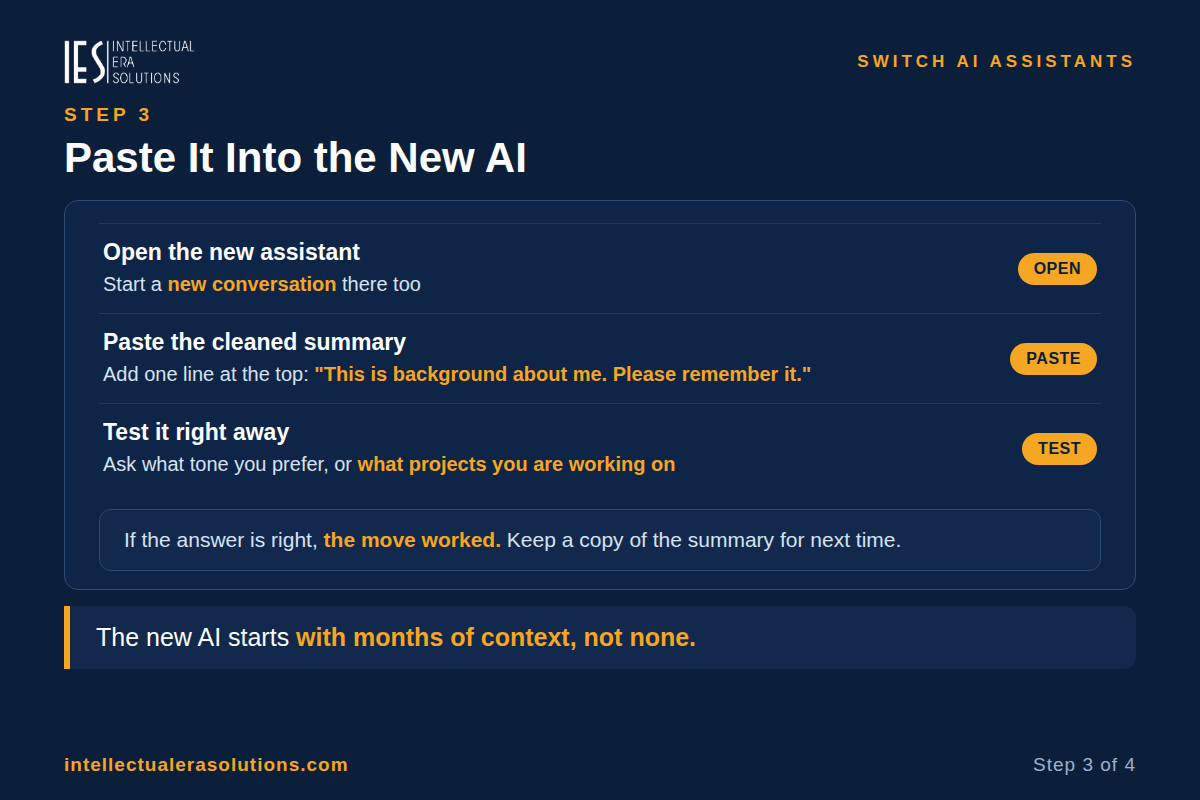
Step 4: Test it. Ask the new assistant something it should now know, for example “What tone do I prefer in answers?” If the answer is right, the move worked. If it is wrong or vague, check whether the summary actually contained that fact. Some assistants need you to confirm that they should keep the information, so ask it directly if you are unsure.
Frequently Asked Questions
What if the old assistant refuses to write the summary?
Some assistants limit what they will say about you, or cannot see past conversations. If that happens, try again with a smaller ask, for example “Write a short summary of what you know about my work and communication preferences, in bullet points”. You can also build the summary yourself from the sections above. The structure is the useful part, even without the old assistant doing the writing.
What if the summary is wrong about something?
Fix it during your review. The prompt tells the assistant to mark guesses with “(inferred)”, but it will still get some things wrong. Delete wrong bullets, rewrite half-right ones, and remove anything out of date. A short correct summary is worth more than a long one with errors in it.
Can I use the same prompt for a team, or for a business?
Yes, with changes. Add a section for the business, as shown above, and change “me” to “our team” in the opening lines if the summary is about a team rather than one person. Review it the same way, and remember that anything you paste in is shared with the new assistant, so leave out client details and private team information.
Need Help Moving Your Work to a New AI Tool?
Switching tools is simple when the move goes well, and frustrating when it does not. If you would rather not sort through AI tools, prompts, and settings yourself, we can help. Intellectual Era Solutions provides IT consulting (https://intellectualerasolutions.com/it-consulting-services/) and WordPress maintenance (https://intellectualerasolutions.com/website-maintenance/), with WordPress development, troubleshooting, and IT consulting for clients worldwide. Read more about us on our About page (https://intellectualerasolutions.com/about/).
Contact us through our website (https://intellectualerasolutions.com/contact/), or email us at info@intellectualerasolutions.com, and tell us what you are switching from, what you are switching to, and what you want the new setup to do. We will help you move across cleanly, and keep your context intact.