WooCommerce Checkout Problems That Lose Sales (and How to Fix Them)
A customer adds products to the cart, reaches the checkout, and never finishes. No error email arrives, no failed order appears in your dashboard, just silence. Your shop looks fine, your products look fine, but money quietly stops coming in.
Most checkout failures have a small, specific cause: a payment method that never appears, a shipping zone that covers nobody, a cached checkout page, or a form that asks for too much. Work through the steps below in order and you will find it.
Who Is Affected
Any WooCommerce store can hit this: a new store where the payment gateway was never finished, a store that just updated WooCommerce, a plugin or the theme, or a store that started selling to a new country.
It is easy to miss, because it only fails for some shoppers. Your own test order works, while a customer in another country, on a phone, or checking out as a guest hits a wall. If orders have gone quiet, the checkout is the first place to look.
What Causes It
The most common causes, in the order you should check them:
- No payment method is available at checkout: no gateway is switched on, or the gateway is stuck in test mode, missing its live keys, or does not support the customer’s currency or country.
- The shipping address matches no shipping zone: the address falls through to an empty catch-all zone, so no shipping method is offered.
- The Checkout page is missing, blank or broken: the page was deleted, unassigned, or no longer holds the checkout block or shortcode.
- The checkout page is being served from a cache: a cached copy carries an expired security token, so the order fails on submit.
- A plugin or theme conflict breaks the checkout form: a script error, or an extension that does not support the Checkout block.
- The checkout asks for too much: an account is forced before payment, or a field or tax total surprises the customer at the last step.
- Nobody tested it after the last change: an update or a settings change broke the checkout and nobody placed a test order afterwards.
The Fix, Step by Step
Back up the site first if you can. Do the steps in order and test after each one.
Step 1: Find exactly where it breaks
Reproduce the failure yourself: open a private window, add a product, and go through the checkout as a customer would. Write down the exact message and where it stops, “no payment methods”, “no shipping options”, a spinning button, or an error after Place order.
Then check WooCommerce > Orders. If your test created an order and only the payment failed, the checkout works and the fault is at the payment step (Step 3). If no order was created, the fault is in the checkout itself (Step 2).
Step 2: Check the Checkout page is set up
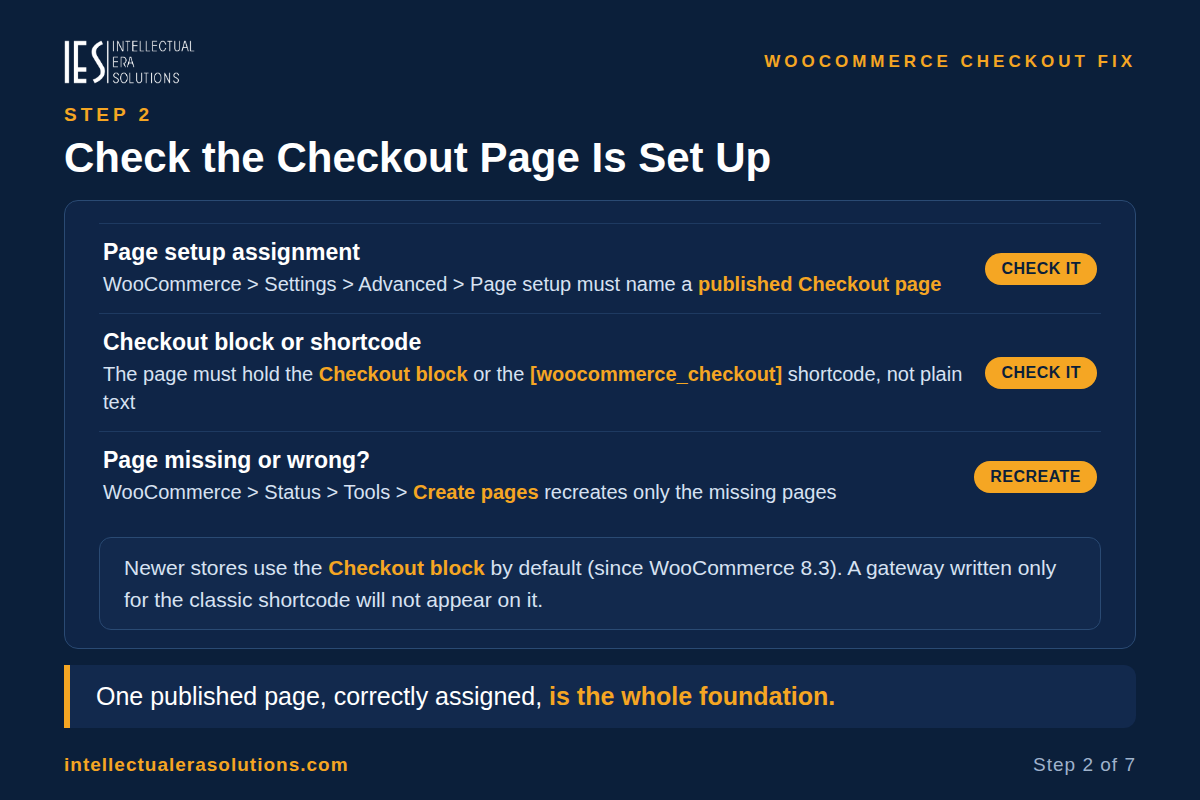
WooCommerce needs one published page, assigned as the Checkout page, that holds its Checkout block or checkout shortcode.
- Go to WooCommerce > Settings > Advanced > Page setup. “Checkout page” must name a published page, not the same page as Cart or My Account.
- Open the page in the editor. It must contain the Checkout block (recent stores) or the [woocommerce_checkout] shortcode (older stores), not plain text, and not a block and a shortcode mixed together.
- If the page is missing or wrong, go to WooCommerce > Status > Tools and click Create pages under “Create default WooCommerce pages”. It recreates only the missing pages. Then check the Page setup assignments again.
Note: newer stores use the Checkout block by default (since WooCommerce 8.3, November 2023). A gateway or checkout plugin written only for the classic shortcode will not appear on the block checkout. Update it to a version with block support, or point the Checkout page at a page using the classic shortcode.
Step 3: Fix the payment methods
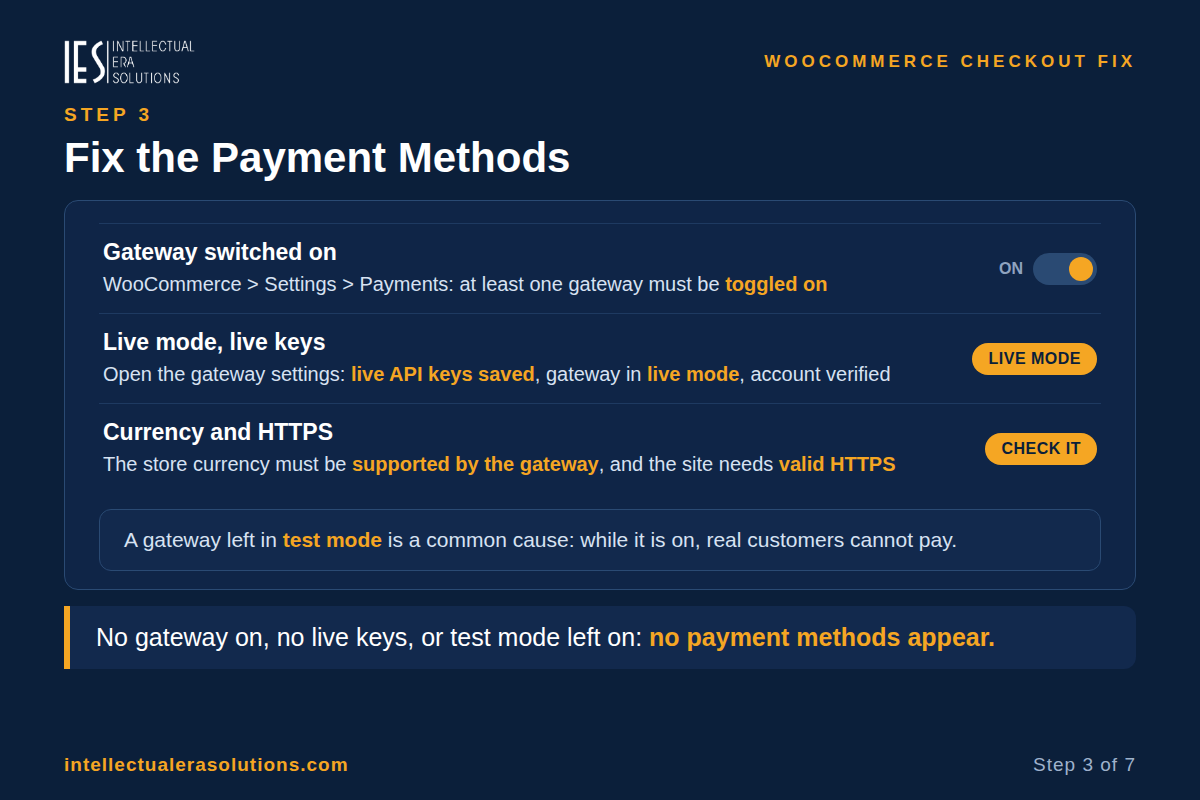
Go to WooCommerce > Settings > Payments and check, in this order:
- At least one gateway is toggled on. WooCommerce ships with no active gateway by default, and an update or migration can leave them all off.
- The gateway is fully connected. Open its settings: live API keys saved (not test keys), the gateway in live mode, not test or sandbox, and the account verified with the provider. A gateway left in test mode is a common cause: while it is on, real customers cannot pay.
- The store currency is supported. Every gateway supports a specific list of currencies; if yours is outside it, WooCommerce hides the method.
- The site has valid HTTPS. Most gateways require it.
- The total is not zero. A 100% coupon or a free product means no payment is needed, so WooCommerce shows no methods. That is normal.
Test again in a private window after any change; some gateways cache their method list for a few minutes.
Step 4: Fix the shipping
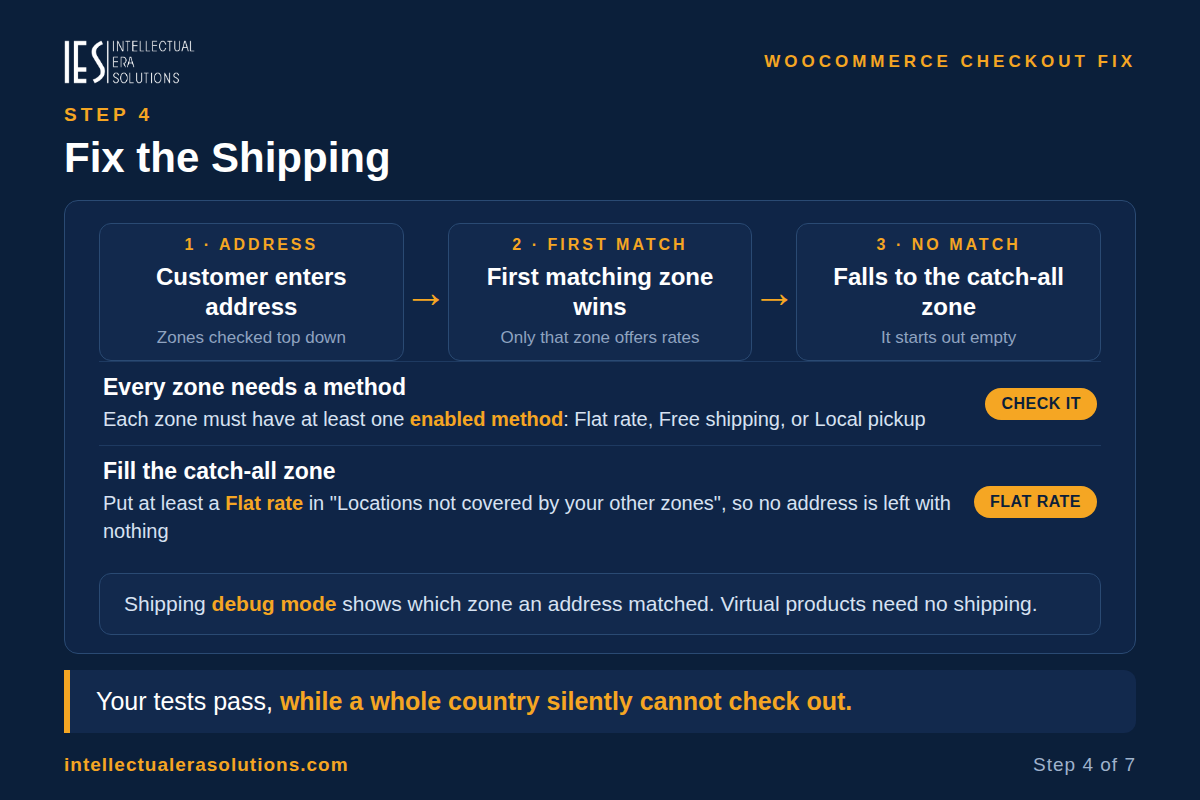
WooCommerce takes the customer’s address, walks your shipping zones from the top down, and stops at the first zone that matches, then asks only that zone for rates. If no zone matches, the address falls through to the catch-all zone, “Locations not covered by your other zones”, which starts out empty.
- Go to WooCommerce > Settings > Shipping > Shipping zones. The customer’s address must match a zone, and that zone must have at least one enabled method: Flat rate, Free shipping, or Local pickup.
- If you sell outside your zones, put at least a Flat rate in the catch-all zone, so no address is left with nothing.
- Check the zone’s region is as wide as you think, a zone set to specific states or postcodes will not match a customer one state over, and check the product is not marked Virtual (virtual products need no shipping, so no shipping section appears).
- If you just fixed a zone and it still shows no methods, clear customer sessions and transients under WooCommerce > Status > Tools and test in a private window. Shipping debug mode (Shipping settings > Enable debug mode) shows which zone an address matched.
Step 5: Keep Cart, Checkout and My Account out of every cache
WooCommerce’s own documentation is clear: the Cart, Checkout and My Account pages must never be served from a page cache, because “these pages need to stay dynamic since they display information specific to the current customer and their cart.”
A cached checkout carries a stale security token (a nonce), so the order fails when the customer submits it, the button spins, or a security error appears.
- In your caching plugin’s settings, exclude /cart/, /checkout/ and /my-account/, plus the ?add-to-cart= and ?wc-ajax= addresses. Some plugins do this themselves; others, such as WP Rocket, need the exclusion added by hand. The same applies to any cache at your host or CDN. Then clear the cache and test in a private window.
- If it still fails, test for a plugin conflict, the same safe method as in our White Screen of Death guide: deactivate all plugins except WooCommerce and your gateway, test, then reactivate one at a time until it breaks again. If the problem follows the theme, switch briefly to a default WordPress theme and test again.
Step 6: Make the form easy: guest checkout, fields, taxes
- Guest checkout. Go to WooCommerce > Settings > Accounts & Privacy and tick “Allow customers to place orders without an account” (newer versions: “Enable guest checkout”). Forcing an account before payment is one of the simplest reasons a sale is abandoned.
- Required fields. Keep them to what you genuinely need. A custom field from a plugin that does not support the Checkout block can stall the whole form.
- Taxes and totals. Go to WooCommerce > Settings > Tax and check taxes are switched on if your store charges them, with rates set for the places you sell to. A total that jumps at the last step makes shoppers leave. Place a test order and check the final total, including tax and shipping.
A slow checkout loses sales too. It cannot be cached, so every click runs through PHP and the database. If the checkout is slow, our slow WordPress guide shows how to measure it.
Step 7: Test it properly, and test again after every change
A checkout is only fixed when a test order completes end to end. Three safe ways to test without charging a real card:
- Gateway test mode. Stripe, PayPal, WooPayments and most gateways have a test or sandbox mode with test card numbers that never charge anyone. That is the only way to test that provider’s real payment screens. But test mode applies to the whole store: while it is on, real customers cannot pay. Use a staging copy, or switch it on for a few minutes at a quiet time and switch it straight back.
- WooCommerce’s official Test Orders extension. Go to WooCommerce > Settings > Payments > Test order, enable it, and choose which user roles can see it. Staff can place test orders that never charge anyone; customers keep seeing the normal methods.
- Cash on Delivery, briefly. Enable it under WooCommerce > Settings > Payments, place your test order, then switch it off again. This tests everything except the card payment itself.
After the test, check the order is in WooCommerce > Orders, the confirmation email arrived, and the payment shows in your gateway’s dashboard. Then delete the test order. Repeat after every fix, and test from a phone on mobile data too. A checkout that only works for you is not fixed.
How to Know It Is Fixed
- A test order completes end to end in a private window and on a phone.
- The order is in WooCommerce > Orders, the confirmation email arrives, and the gateway dashboard shows the payment.
- The checkout shows a payment method and a shipping method for a test address in each country you sell to, not just your own.
- Watch new orders for a few days. If a customer reports a problem, ask for the exact message and the country they ordered from, then start again at Step 1.
Frequently Asked Questions
Why does my checkout say “no payment methods available”?
WooCommerce has no gateway it can offer for that cart: no gateway switched on, the gateway not fully connected (test mode, missing live keys, unverified account), an unsupported store currency or customer country, no valid HTTPS, or a gateway without Checkout block support on the block checkout.
Why do some customers see “no shipping options available” while others check out fine?
Their address matches no shipping zone, or falls through to the empty catch-all zone. Your own address matches a zone you set up, so your tests pass while a whole country silently cannot check out. Check the zones under WooCommerce > Settings > Shipping, and fill the catch-all zone with at least a flat rate.
Can I test my checkout without charging a real card?
Yes, your gateway’s test mode with its test card numbers, WooCommerce’s official Test Orders extension, or Cash on Delivery switched on for a few minutes. Remember test mode applies to the whole store, so use a staging copy or a quiet time and switch it back.
My checkout worked, then broke after an update. What changed?
Start with the last thing that changed: a WooCommerce, plugin or theme update. Test with the other plugins deactivated and reactivate them one at a time; check the gateway still supports the Checkout block; and check the checkout page is not being served from a cache. If the site itself will not load, work through our site-down guide first.
Need Help Fixing Your WooCommerce Checkout?
A checkout that loses orders costs you money every day it stays broken. If the steps above have not fixed it, or you would rather not change payment and shipping settings yourself, we can help. Intellectual Era Solutions provides WordPress maintenance and WooCommerce troubleshooting, with WordPress development and IT consulting for clients worldwide.
Contact us through our website, or email us at info@intellectualerasolutions.com, and tell us the exact error message your customers see, when it started, and which payment gateway and shipping methods you use. We will find the real cause and get your checkout taking orders again.