Is My Website Down? How to Tell and What to Do First
You open your website and it will not load. Or a customer messages you: “your site is down.” Your first thought is that something big broke — the hosting failed, the site was hacked, the domain expired.
Sometimes it is big. But often the site is fine and the problem is smaller: your own connection, a DNS change that has not finished spreading, an expired security certificate, or a plugin update that got stuck halfway. The checks below take a few minutes and tell you which one it is — before you pay anyone or rebuild anything.
Work through them in order. Each check rules out one cause, so by the end you know exactly who can fix it: you, your host, or your domain registrar.
First: Is It Down for Everyone, or Just for You?
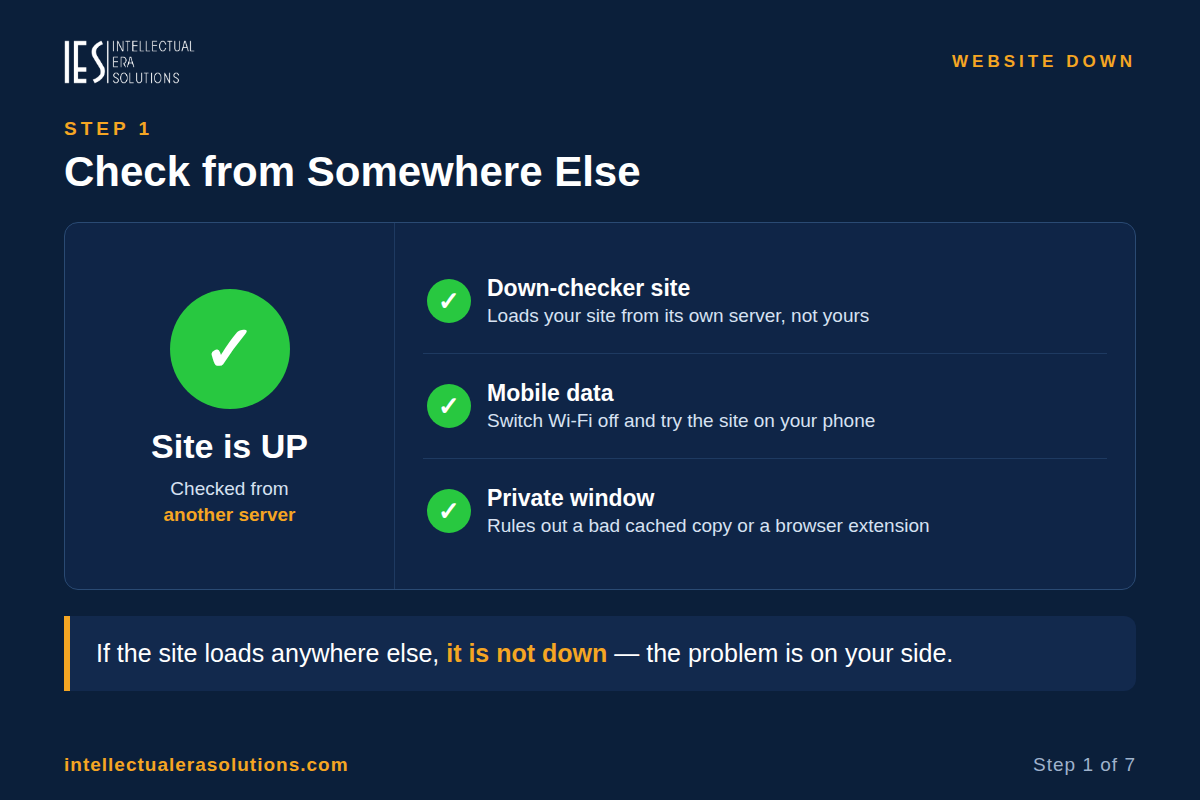
Step 1: Check from somewhere else
- Try a down-checker site. Open a service such as Down Detector or Down For Everyone Or Just Me, type in your domain, and see what it reports. These services load your site from their own servers, so they are not affected by your connection.
- Try another connection. Open the site on your phone with Wi-Fi switched off (mobile data), or ask someone in another city to open it. If it loads for them, the site is up — the problem is on your side.
- Try another browser, and a private window. A bad cached copy or a browser extension can make one browser fail while the site itself is fine. If a private window loads the site, clear your browser cache and try again.
If the site loads anywhere else, it is not down. Check your own connection first: restart your router, try a different network, and check whether other websites load. If only your site fails on every network you try, move on to Step 2 — the problem is with the site itself.
Read the Error Message — It Tells You Where to Look
The exact message on the screen is the best clue you have. Write it down before you do anything else.
| Error message | What it means | Where to look |
|---|---|---|
| “This site can’t be reached” / “Server not found” / ERR_NAME_NOT_RESOLVED | The browser cannot find the site’s address at all | DNS or the domain itself (Step 3) |
| “This site can’t be reached” / ERR_CONNECTION_TIMED_OUT | The browser found the address but got no answer | Hosting or the server (Step 5) |
| “Your connection is not private” / certificate warning | The security certificate is expired, wrong, or not trusted | SSL certificate (Step 4) |
| “Briefly unavailable for scheduled maintenance. Check back in a minute.” | WordPress is stuck in maintenance mode after an update | WordPress itself (Step 6) |
| Blank white page | WordPress crashed while building the page | Our White Screen of Death guide |
| 500 Internal Server Error | The site’s own code crashed | Error log and the last change you made (Step 5) |
| 502 Bad Gateway | A server in front of the site got no usable answer from the server behind it | Hosting / the application server (Step 5) |
| 503 Service Unavailable | The server is up but refusing requests — overloaded, or deliberately in maintenance | Hosting, or a maintenance mode left on (Steps 5–6) |
| 504 Gateway Timeout | The server in front waited too long for the server behind it | A slow database or service on the server (Step 5) |
A 5xx error (500, 502, 503, 504) means the request reached a server and the server failed to answer it — so the problem is on the website’s side, not the visitor’s. A DNS error (ERR_NAME_NOT_RESOLVED) means the browser never found the server at all.
The Fix, Step by Step
Step 2: Check the domain and the hosting account
A site goes down more often from an unpaid bill or an expired domain than from a hack.
- Check your domain has not expired. Log in to your domain registrar (where you bought the domain name) and confirm the domain is active, paid up, and set to renew. An expired domain stops the whole site, and the fix is renewing it — though DNS can take time to work again afterwards.
- Check your hosting account is active. Log in to your hosting account and check for an unpaid invoice, a suspension notice, or a message that you used up your storage or bandwidth. Hosts also suspend sites they believe are hacked — if yours was, work through our hacked-site guide as well.
- Check your host’s status page. Every host has one (search for your host’s name plus “status”). If the host reports an outage in your region, the problem is theirs, and there is nothing to fix on your site — wait for their update, and note the time the outage started.
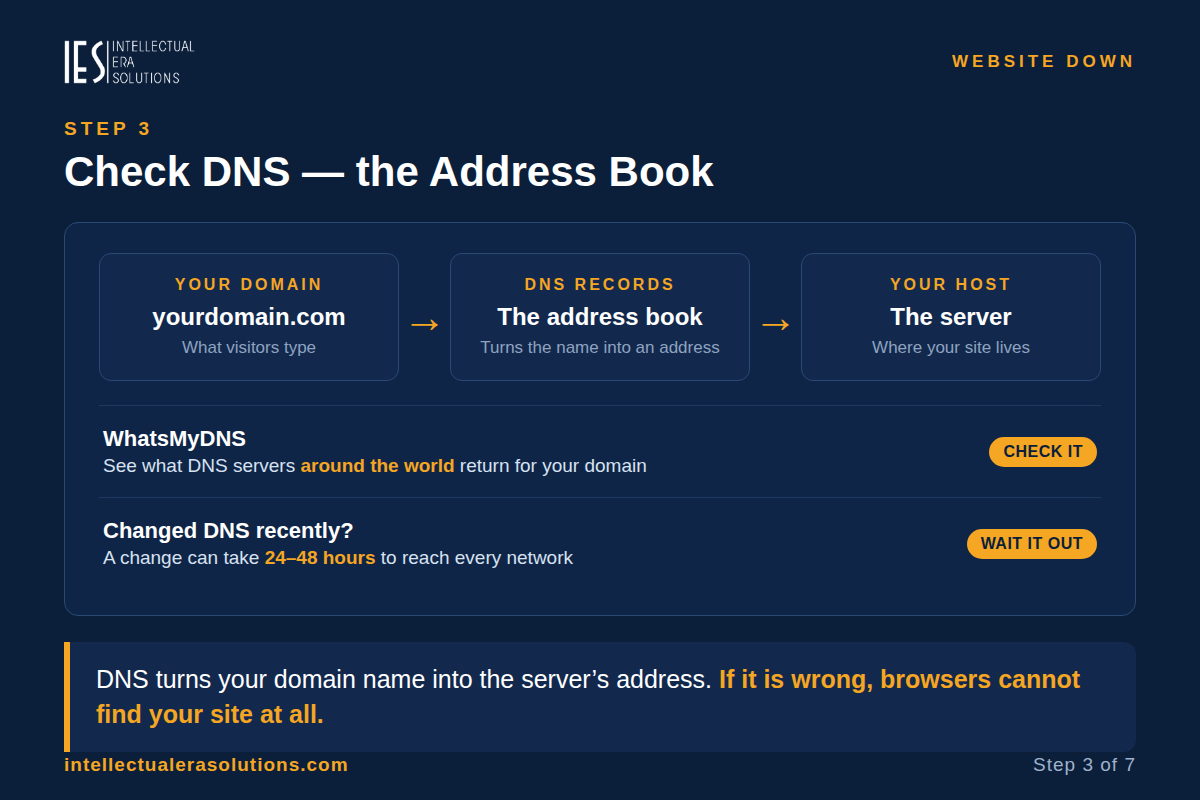
Step 3: Check DNS — the site’s address book
DNS is the system that turns your domain name (yourdomain.com) into the server’s address. If DNS is wrong, browsers cannot find your site at all — even though the site itself is running fine.
- Check whether DNS points at the right server. A tool such as WhatsMyDNS shows what DNS servers around the world currently return for your domain. If the address it shows is not your host’s server, the DNS records are wrong — check them in your domain registrar or DNS provider’s panel, and compare them with the nameservers or IP address your host gave you.
- Did you change DNS recently? A nameserver or record change can take up to 24–48 hours to reach every network (this is called DNS propagation). During that window, the site may load for some people and not for others. If you changed DNS in the last day, wait before assuming anything is broken.
- Try another DNS service. Change your computer’s DNS to 1.1.1.1 or 8.8.8.8 and try the site again. If it loads, your usual DNS provider has a stale or bad record — the site is fine, and the record will usually correct itself.
Step 4: Check the SSL certificate
If the browser shows a certificate warning instead of your site, the SSL certificate — the thing that puts the padlock in the address bar — has a problem. Common causes: it expired, it was issued for a different domain (for example, without “www” when the site uses “www”), or it was never installed after a host move.
Check the certificate’s expiry date by clicking the padlock (or the warning) in the browser, or with a free SSL checker. If it expired, renew it — most hosts offer a free certificate that renews itself, but the automatic renewal sometimes fails after a move or a DNS change. If the certificate is valid but the warning continues, ask your host to reinstall it.
Step 5: Check the hosting and the server
If the domain, DNS and certificate are all fine, the server itself is the next suspect.
- Can you reach the WordPress admin? Try opening yourdomain.com/wp-admin. If the admin loads but the public site does not, WordPress is running and the problem is in the theme or a plugin — go to Step 6. If the admin does not load either, the server or the hosting account is the problem.
- Look at the error log. Your hosting panel has an error log (or a “logs” section). The newest entries usually name the exact file or plugin that failed, with a time. Copy the last few lines — you will need them if you contact support.
- Check your resource limits. Hosting panels show CPU, memory and disk use. A site that used up its memory or disk space stops responding; a site hit by a traffic spike can hit its CPU limit and return 503 errors. If a limit is full, that is your cause.
- Contact the host — with the facts. Tell them the exact error message, when it started, whether wp-admin loads, and what the error log says. That is enough for them to check the server, restart a failed service, or tell you the fault is in your site’s code.
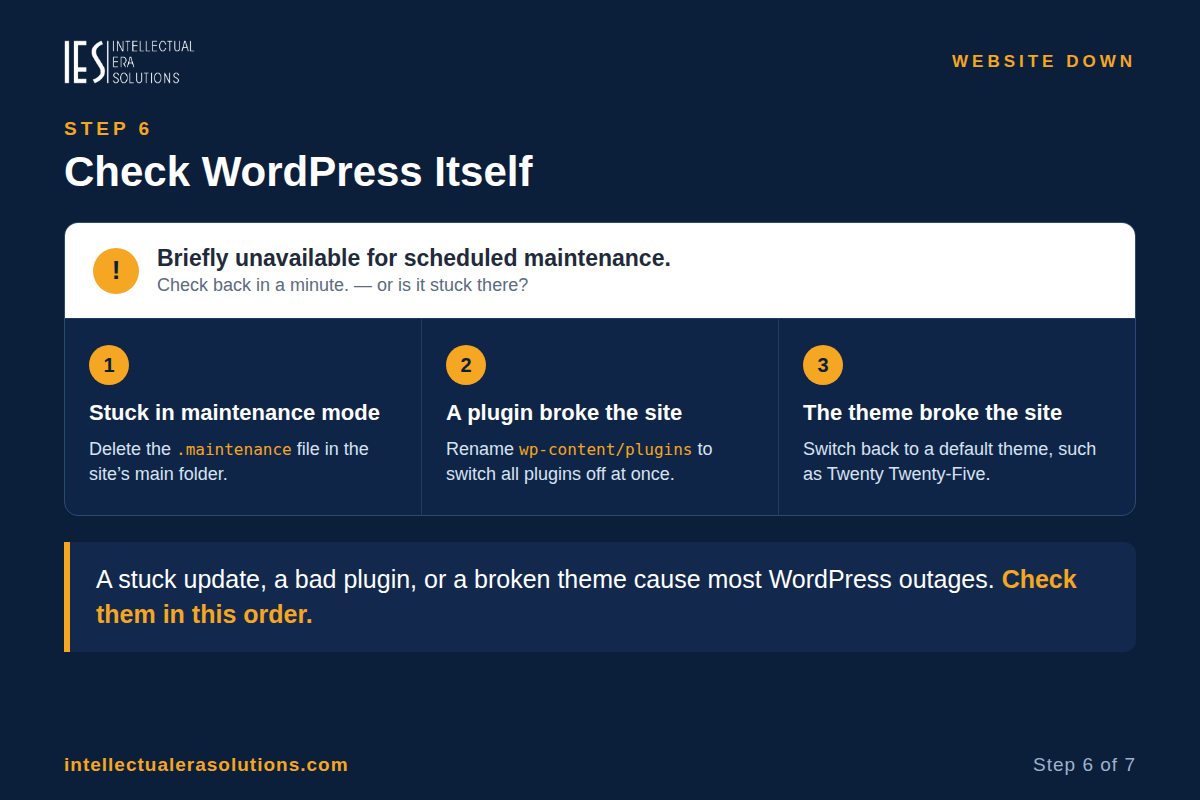
Step 6: Check WordPress itself
If the server is up but WordPress will not load, three WordPress faults cause most outages.
- Stuck in maintenance mode. When WordPress updates itself, a plugin or a theme, it briefly shows “Briefly unavailable for scheduled maintenance.” If the update is interrupted, the site can stay stuck there. The fix is to delete the .maintenance file in the site’s main folder (through your hosting file manager or FTP) — and then check that the interrupted update finished properly.
- A plugin broke the site. A bad plugin update can crash the whole site. The safe test: through your hosting file manager or FTP, rename the wp-content/plugins folder to plugins-old. That switches off every plugin at once without deleting any settings. If the site loads, rename the folder back and then rename the plugins inside it one at a time until the site breaks again — that one is the culprit. (If the site shows only a blank white page, follow our White Screen of Death guide for the same test in detail.)
- The theme broke the site. If the plugins test does not help, try switching to a default WordPress theme (such as Twenty Twenty-Five) from the dashboard — or, if the dashboard will not load, rename the active theme’s folder in wp-content/themes the same way, which forces WordPress back to a default theme.
Step 7: If you took the site down yourself, say so properly
Sometimes the site is down on purpose — a redesign, a move, or maintenance. If visitors and Google must wait, return a 503 “Service Unavailable” status with a short message and a time to check back, instead of letting the site fail with errors. Google treats a 503 as temporary and keeps the site in its results while you work; a site that returns errors for days can lose its rankings. Keep any planned downtime short — a day or two at most.
How to Know It Is Fixed
- Load the site in a private window, on two different connections (Wi-Fi and mobile data). A private window skips your browser’s cache, so you see the live site, not an old copy.
- Check the down-checker again. It should report the site as up from its own servers.
- Click through the main pages — home, contact, and one or two others — and confirm they load, not just the homepage.
- Watch it for a day. If the site goes down again at the same time of day, or after the same action, the cause is still there — usually a resource limit, a scheduled task, or a plugin. Go back to Step 5 with the new time and error message.
Frequently Asked Questions
How do I know if a website is down for everyone or just me?
Use a down-checker site such as Down Detector, and try the site on mobile data and in a private browser window. If it loads anywhere else, the site is up and the problem is your connection, browser, or DNS.
Why is my website down for no reason?
There is always a reason — the usual ones are an expired domain or unpaid hosting, a DNS change, an expired SSL certificate, a failed update that left WordPress in maintenance mode, a broken plugin, or a server limit that was reached. Work through Steps 2–6 in order and one of them will match.
My site is down and I changed nothing — what happened?
Things change without you: a certificate expired, the host moved your site to another server, a plugin updated itself, or the host suspended the account over a limit or a security flag. Check the domain and hosting account first (Step 2), then the host’s status page.
How long does it take for a website to come back after fixing DNS?
DNS changes can take up to 24–48 hours to reach every network, though most updates spread within a few hours. If you changed nameservers or DNS records, wait before judging the fix — and test with a DNS checker to see the new records spreading.
Should I keep refreshing the page while it is down?
Refresh a few times over a few minutes, not fifty times in a row. If the server is overloaded, hammering refresh adds load to a server that is already struggling.
Stop Finding Out from Your Customers
The cheapest fix for a site going down is knowing about it first. A free uptime monitor checks your site every few minutes and emails you the moment it stops responding — before a customer tells you. UptimeRobot’s free plan, for example, watches up to 50 monitors with a check every 5 minutes. Set one up for your homepage, and check it after any host move, DNS change, or major update.
Need Help Getting Your Website Back Online?
A site that will not load costs you visitors while it is down, and guessing at the cause can make it worse. If you would rather not work through the checks yourself, we can help. Intellectual Era Solutions provides WordPress maintenance and emergency WordPress troubleshooting, with WordPress development and IT consulting for clients worldwide.
Contact us through our website, or email us at info@intellectualerasolutions.com, and tell us the exact error message, when it started, and whether your WordPress admin still loads. We will find the real cause and get the site back up.