How to Share Google Authenticator Codes With Someone (or Move Them to a New Phone)
Google Authenticator gives you a 6-digit code every time you log in to a website that has two-factor authentication turned on. It works well until one of these two things happens. You get a new phone, and all your codes are still on the old one. Or someone else needs to log in, for example your developer needs the code to work on your website, and only your phone has it.
The good news is you do not have to turn two-factor authentication off and set it up again from the start. Google Authenticator has a built-in move feature. It shows a QR code on one phone, the other phone scans it, and the codes appear there in seconds. This guide shows you how to do it, how to share a code with someone else safely, and what to do if you lose your old phone.
Watch the Video
Watch on YouTube: https://www.youtube.com/watch?v=25hiNVAkXTQ
What you need
- Google Authenticator installed on both phones. It is free on the App Store and Google Play.
- Both phones with you, or the QR code sent to the other person through a private message.
- About 2 minutes.
One important fact first: moving a code does not delete it from the old phone. It copies it. So after the move, both phones can make codes until you delete the account from the old phone yourself.
Step 1: Open Transfer codes on the old phone
- Open Google Authenticator on the phone that has the codes now.
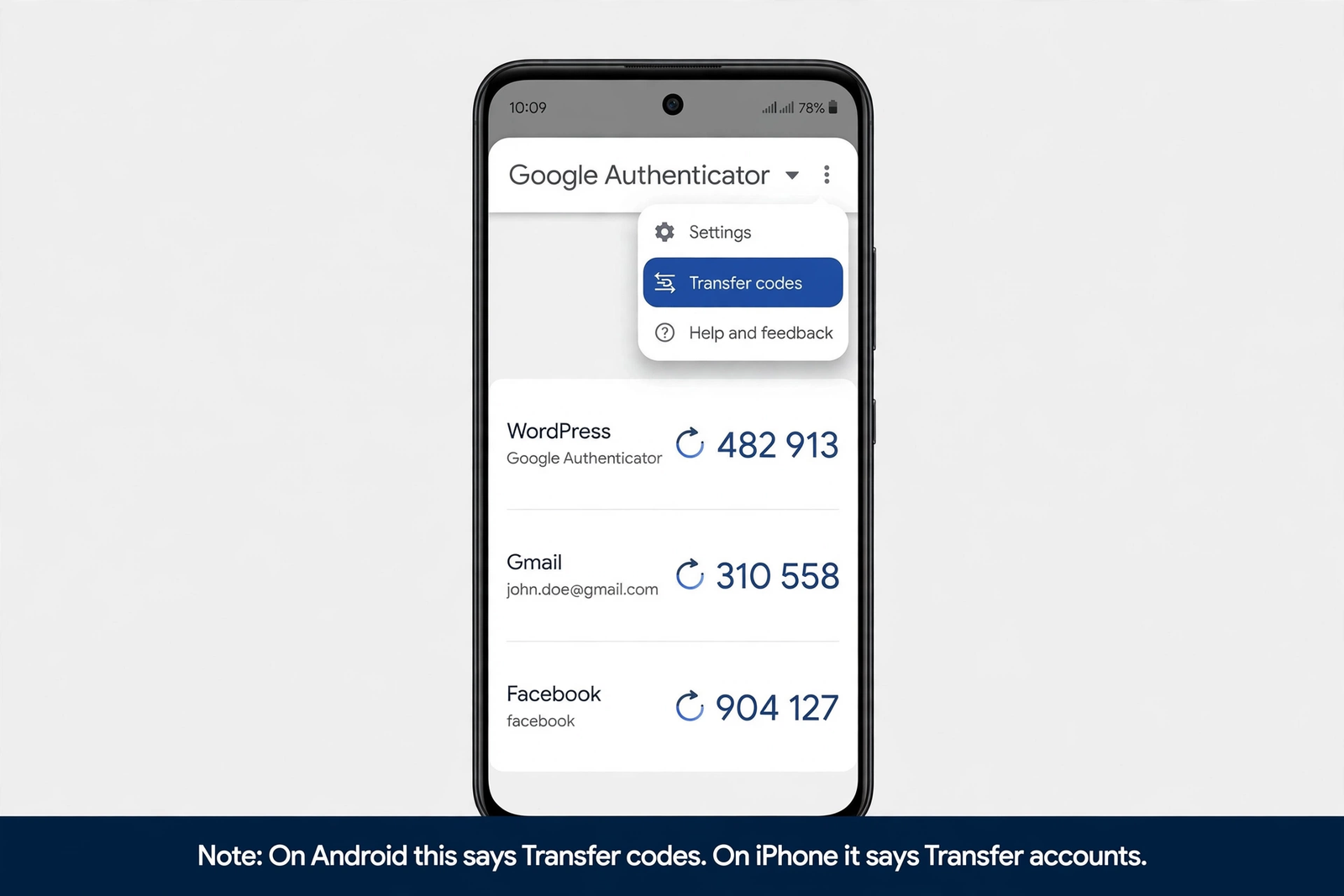
- Open the menu. On iPhone, tap your profile picture in the top corner, then tap Transfer accounts. On Android, tap the three dots in the top corner, then tap Transfer codes. The steps are the same on both, only the names differ slightly.
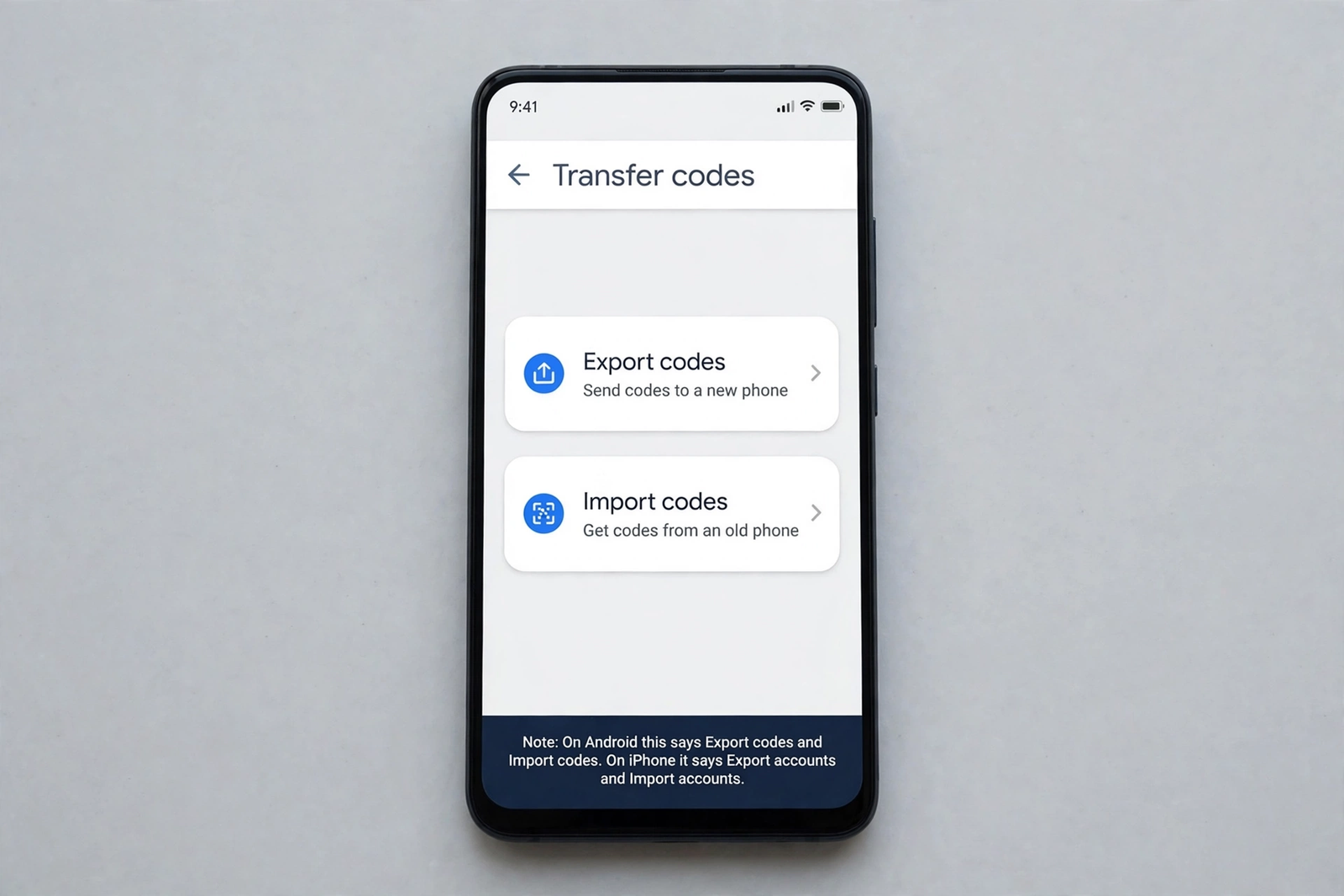
- The app asks what you want to do. Tap Export codes (Export accounts on iPhone) to send codes from this phone. The app may ask for your fingerprint, face or phone lock code first. That is normal, it is proving it is really you.
- Pick the accounts you want to move. You can pick one or all of them.
Step 2: Pick the accounts and tap Next
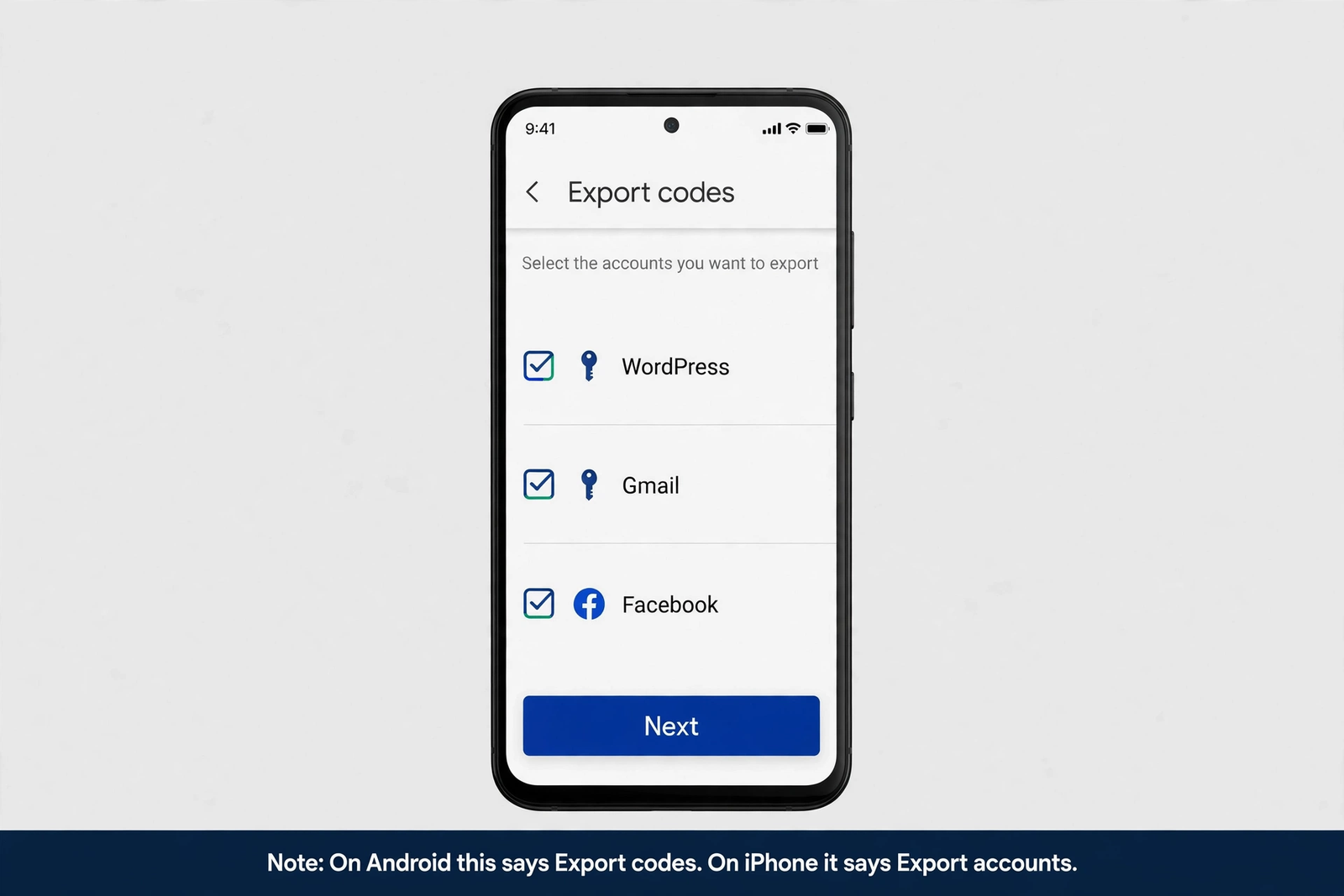
- Tick the accounts you want to move. All of them are ticked by default, untick any you want to leave behind.
- Tap Next. The phone shows a QR code on the screen.
That QR code holds the secret key for each account you picked. Anyone who scans it can make your login codes, so treat it like a password. Do not show it on a video call with other people in the room, and do not post a screenshot of it anywhere.
If you picked many accounts, the app may show more than one QR code. Scan each one on the new phone, one after the other.
Step 3: Scan the QR code with the new phone
- Open Google Authenticator on the new phone.
- Open the menu. On iPhone, tap your profile picture in the top corner, then tap Transfer accounts. On Android, tap the three dots in the top corner, then tap Transfer codes. The steps are the same on both, only the names differ slightly.
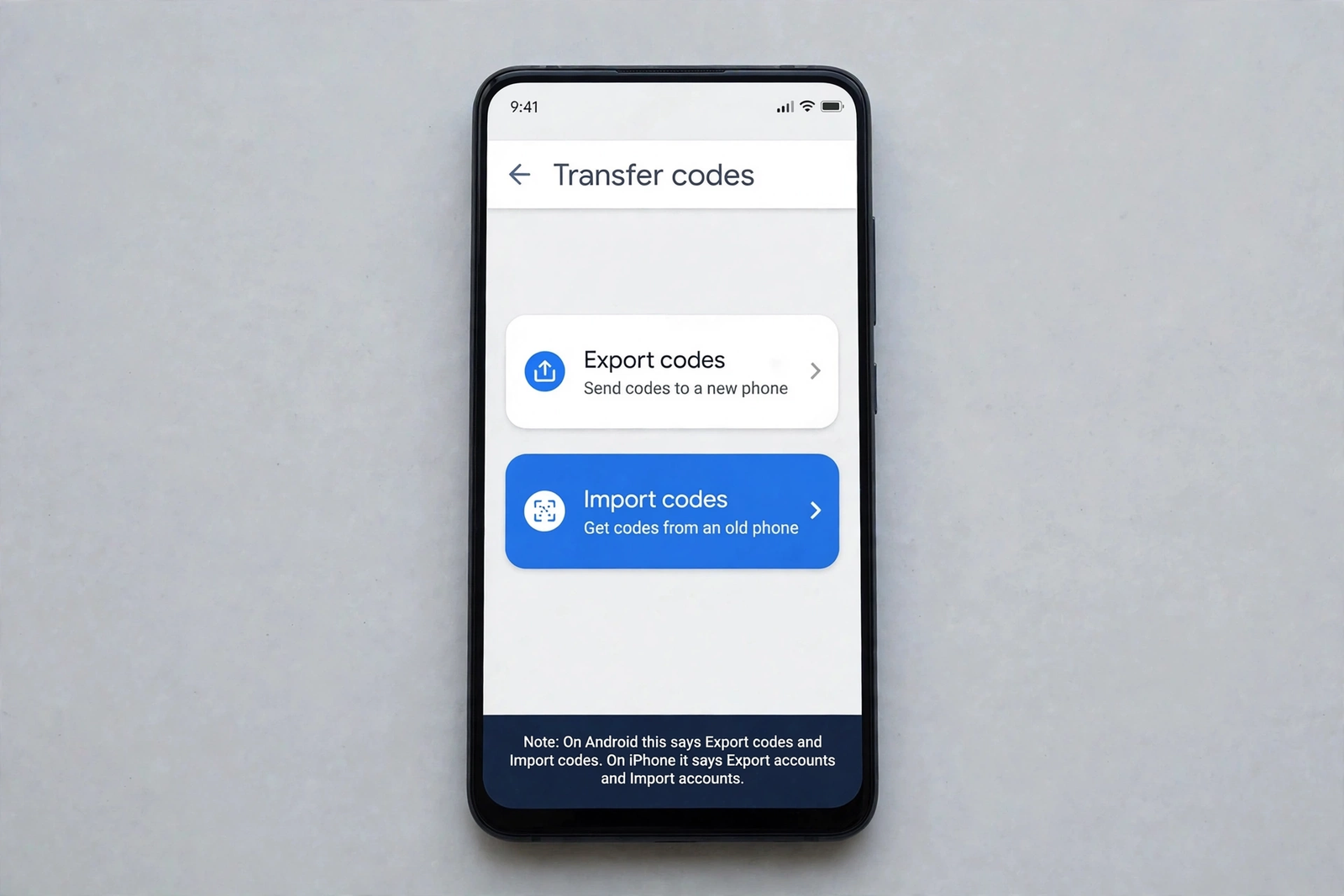
- The app asks what you want to do. Tap Import codes (Import accounts on iPhone) to get codes from the old phone.
- Tap Scan QR code. The camera opens.
- Point the camera at the QR code on the old phone. Hold both phones steady, and the accounts appear in the list straight away, with new codes already running.
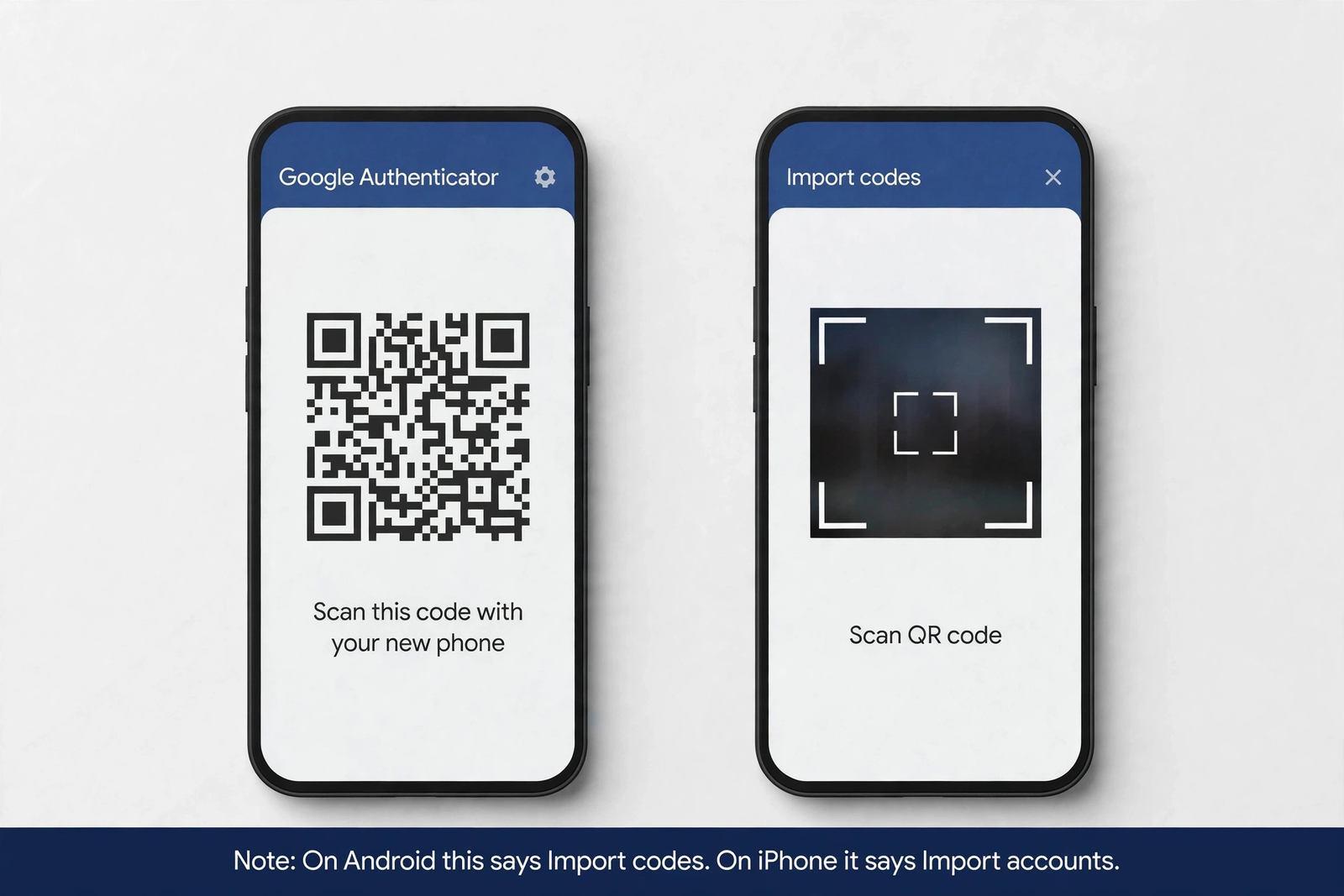
If the camera cannot read the code, move the phones a little further apart, turn the brightness up on the old phone, and try again.
This QR code is made for Google Authenticator, so it works when the other phone also uses Google Authenticator. It will not work in Microsoft Authenticator. Some other apps can read it, such as Aegis, 2FAS, Ente Auth and Proton Authenticator. See the FAQ below for how to move to Microsoft Authenticator.
Step 4: Check the codes are on the new phone, then test a login
You should now see the same accounts on the new phone, each with its own 6-digit code and a small timer circle showing how many seconds are left before the code changes.
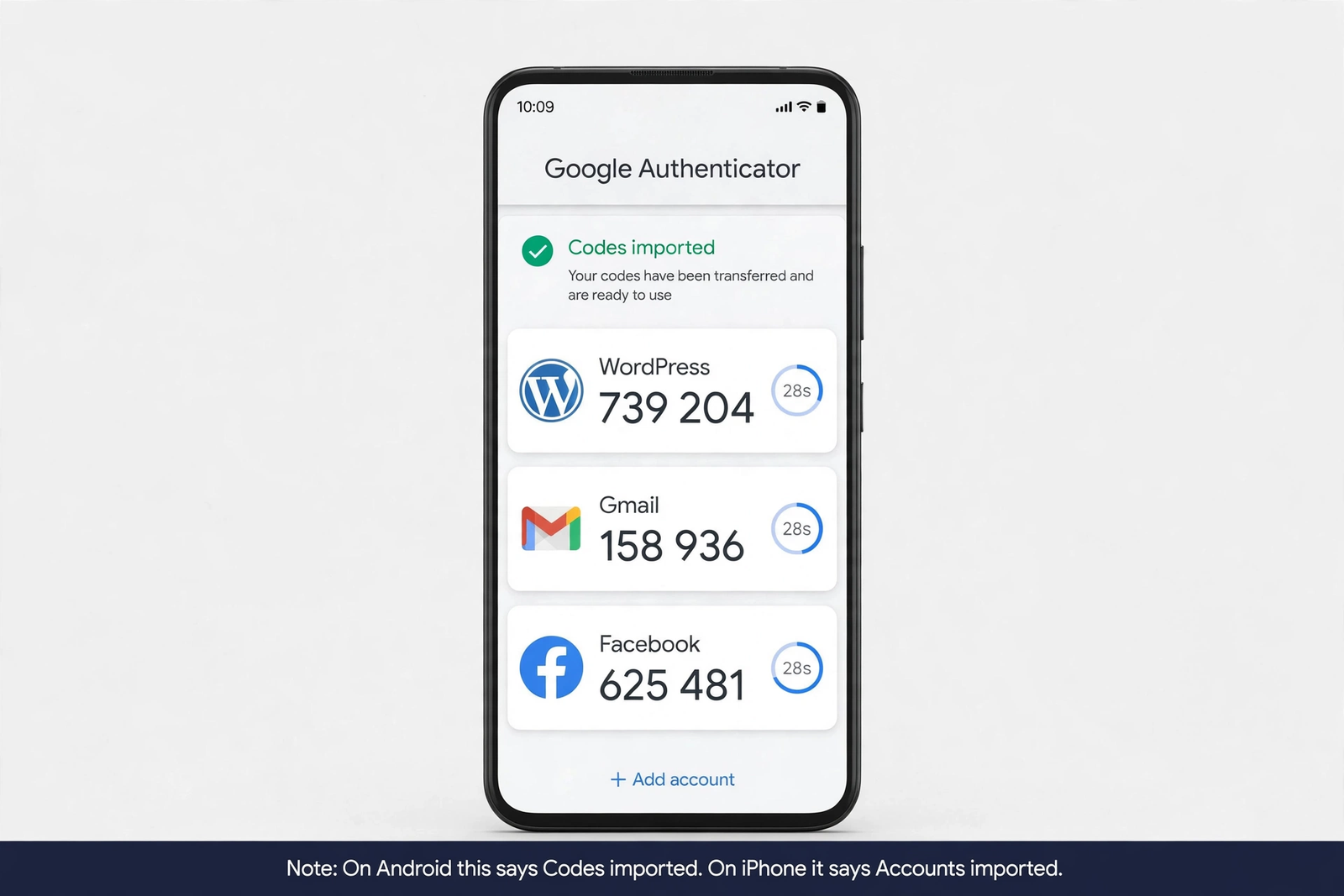
Now test it before you delete anything. Do not delete the old phone yet. First, prove the new phone works:
- Go to the website and log in with your password.
- When it asks for the code, type the code from the new phone.
- If it logs you in, the move worked. The other person is now inside the account with their own phone making the codes.
Only after a successful login should you clean up the old phone. If the code does not work, check the time on both phones. Authenticator codes depend on the time being right, so turn on automatic date and time in the phone settings and try again.
The easier way, for your own new phone only
If the codes are saved to your Google account inside the app, there is an even simpler way. Install Google Authenticator on the new phone, sign in with the same Google account, and the codes sync by themselves. You need app version 6.0 or above on Android, or 4.0 or above on iPhone. This only works for your own phones and your own Google account. It does not help when you want to share a code with another person. For that, use the QR code steps above.
Step 5: Clean up
If you moved to a new phone, delete the accounts from the old phone now. In Google Authenticator, long-press the account, tap Delete, and confirm. If you gave the old phone away or sold it, this step matters most, because the codes still work on it until you delete them.
If you shared a QR code image with someone, delete that image from your chat and your gallery after they have scanned it. A QR code sitting in a chat history is a key sitting in the open.
Sharing a code with someone else
The steps are exactly the same, only the other phone belongs to another person. This is the normal way a website owner shares login access with a developer for a short job. The owner exports the code, the developer scans it, and both phones can make codes while the work goes on.
Three rules for sharing:
- Share only with someone you trust. A shared code means shared access to the account.
- Share it in person if you can. If you must send it, use a private message, not a group chat and never a public post.
- Take it back when the work is done. When the developer no longer needs access, turn two-factor authentication off on that website and turn it on again. That creates a brand new secret key, and the old code on the developer’s phone stops working. This takes about a minute and it is the only way to be sure the shared code is dead.
It also works the other way round: a developer handing a site back to its owner. The developer exports the code, the owner scans it with their phone, and both phones can make codes while the handover goes on. The same warning applies: the moment the owner scans the code, both phones make the same codes, so when the work is done the owner should take the code back by turning two-factor authentication off and on again on the website.
Changing your service vendor? Move the codes first
When you change your website developer, agency, or service vendor, the new team needs your login codes to manage your site. The old vendor has the codes on their phone, and the new vendor needs them on theirs. Share them the same way: the old vendor opens Transfer codes, picks the accounts, and shows the QR code. The new vendor scans it with their phone, and the codes appear straight away. Do this before the old vendor stops work, while they still have the codes and can show the QR code. After the handover, take the codes back from the old vendor. Turn two-factor authentication off on each website, then turn it on again and scan the new setup code. That gives each site a new secret, and the old vendor’s codes stop working. Never leave a vendor you no longer work with able to sign in to your website.
What if you lost the old phone
If the old phone is gone and you never moved the codes, you are not locked out for good. Try these in order:
- Backup codes. When you turned on two-factor authentication, the website gave you backup codes to save somewhere safe. Use one to log in, then turn two-factor authentication off and on again to set up your new phone.
- Google account sync. If you were signed in to your Google account inside Google Authenticator, your codes may sync to the new phone when you sign in with the same Google account. This only helps if sync was turned on before you lost the phone.
- Account recovery. If there are no backup codes, use the website’s recovery option, usually by email, or contact the website’s support and prove the account is yours. It takes longer, but it works.
This is why backup codes matter. Save them somewhere safe the day you turn on two-factor authentication, not the day you lose your phone.
Why this matters for your website
Two-factor authentication is one of the simplest ways to protect a WordPress website. Even if someone steals your password, they cannot log in without the code from your phone. But it only helps if the code is always within reach when you need it. Keep it on your current phone, keep your backup codes safe, and share the code the right way when someone needs to work on your site, then take it back when the job is done.
If your website does not have two-factor authentication yet, turn it on. It takes a few minutes and it blocks the most common way websites get taken over: a stolen password.
Frequently asked questions
Can I scan the QR code into another app, like Microsoft Authenticator?
Not directly. The QR code Google Authenticator shows when you export is in Google’s own format, made for moving codes to another phone running Google Authenticator. Microsoft Authenticator cannot read it, so scanning it there will not work.
Some other apps can read Google’s export QR code directly: Aegis, 2FAS, Ente Auth and Proton Authenticator.
To move your codes to Microsoft Authenticator, add each account again by hand. Open the website’s security settings, turn two-factor authentication off and back on, and scan the new QR code the website shows with Microsoft Authenticator. In the app, choose Other account when you add it. Keep the old phone working until every account is confirmed in the new app.
This limit only applies to Google’s export QR code. A normal setup QR code from a website is a standard code, and any authenticator app can scan it.
Can I transfer Google Authenticator to a new phone without the old phone?
No, not with the QR code. The QR transfer needs the old phone in your hand. If your codes were saved to your Google account, install Google Authenticator on the new phone, sign in with the same Google account, and the codes sync by themselves. If they were not saved, use your backup codes to sign in to each website, then turn two-factor authentication off and on again to set up the new phone. There is no way to pull the codes from a lost phone.
Can I use Google Authenticator on two phones at the same time?
Yes. Exporting copies the codes, it does not delete them from the old phone, so both phones make the same codes until you delete the account from one phone. If you sign in with the same Google account on both phones, the codes stay in sync between them.
Does Google Authenticator move my codes automatically when I get a new phone?
Only if your codes were saved to your Google account. Install the app on the new phone, sign in with the same Google account, and the codes appear by themselves. You need app version 6.0 or above on Android, or 4.0 or above on iPhone. If you never signed in inside the app, nothing moves by itself. Use the Transfer codes steps in this guide instead.
Can I send a photo of the QR code and scan it later, or do we have to do it at the same time?
No, you do not have to do it at the same time. The QR code holds the secret keys for your accounts, not a single code, so a photo of it still works later. The other person can scan it after an hour, a day, or a week, and the codes will move. The 6-digit codes change every 30 seconds, but the QR code is the key that makes those codes, and the key does not change. Two things to know: the export screen on the old phone closes after a short time, so if the other person is slow, just open Transfer codes and show the QR code again. And if you turn two-factor authentication off and on again for an account after sending the photo, the old photo stops working for that account, because the website made a new key. Treat the photo like a password. Send it only in a private message to someone you trust, and delete it after they scan it. Anyone with that photo can add your accounts to their own phone.
How do I share Google Authenticator codes when I change my website developer or vendor?
Ask the old developer or vendor to export the codes and show the QR code, then scan it with the new vendor’s phone using the Import codes steps in this guide. Do it before the old vendor stops work. After the handover, turn two-factor authentication off and on again on each website so the old vendor’s codes stop working.