WordPress Dashboard Looks Broken? How to Fix the Unstyled Admin Area
You log in to your WordPress dashboard and something is wrong. The left menu is a plain list of text links. The boxes on the screen have no colour, no spacing, no buttons, just words stacked on top of each other, parts overlapping, large areas blank.
Your website itself still loads fine for visitors. Only the admin area looks broken. This is one of the most common WordPress problems, and it is usually a small one: the dashboard’s styling loads through two files, load-styles.php and load-scripts.php, and when those files do not load because of a stale cache, a plugin that combines files, a damaged core file, dashboard shows up as plain HTML. The content is still there; only the look is gone.
Work through the steps below in order, checking the dashboard after each one. The first two take a minute and fix most cases. The later steps need the hosting file manager or FTP, so take a backup first if you can reach one.
Who Is Affected
Any WordPress site can hit this, usually after an update, WordPress itself, a plugin, or a theme. After a caching or optimisation plugin is switched on, or after a move to a new host. It is easy to mistake for a hacked or dead site, but it is neither: if the public website still loads, WordPress and the database are running, and the fault is in how the admin area’s styles and scripts reach your browser.
If the public website will not load either, that is a different problem. Work through our site-down guide first.
What Causes It
The most common causes, in the order you should check them:
- A stale browser cache showing an old, broken copy of the admin styles.
- A stale site or CDN cache serving an old or half-finished copy of the admin files.
- A plugin conflict, most often a caching, minify, or security plugin that combines or blocks the admin styles and scripts.
- Script concatenation failing, WordPress joins admin scripts and styles into single files, and on some servers that combined file fails to load.
- Mixed HTTP and HTTPS content: admin styles requested over plain HTTP while the site loads over HTTPS, so the browser blocks them.
- Damaged WordPress core files, an update that stopped halfway, leaving
wp-adminorwp-includesincomplete. - A security rule or wrong file permission blocking the admin files: a rule in .htaccess stops the server from serving them at all.
The Fix, Step by Step
Step 1: Rule out your browser first
- Do a hard refresh. Hold Ctrl and press F5 (on a Mac, Cmd + Shift + R). This forces the browser to download fresh copies of the admin styles instead of using its cache.
- Try a private window. Open the dashboard in a private or incognito window, with extensions off. If it looks normal there, clear your browser cache and try again.
- Try a different browser. If it works in another browser, the site is not the problem. If it is broken everywhere, the cause is on the site. Move on to Step 2.
Step 2: Clear every cache, and switch off combining
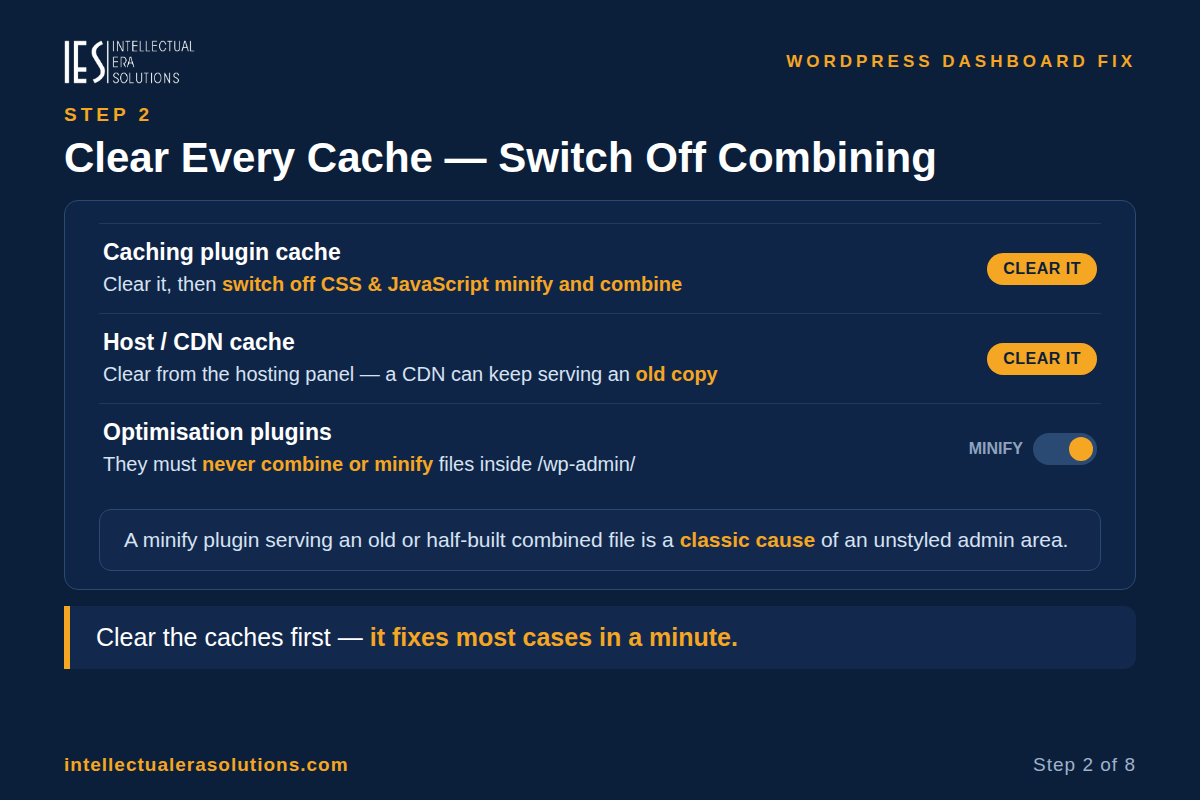
- Clear your caching plugin’s cache, and switch off CSS and JavaScript minify and combine for now. A minify plugin serving an old or half-built combined file is a classic cause of an unstyled admin.
- Clear the host or CDN cache from the hosting panel. A CDN can keep serving an old copy of the admin files after an update.
- Exclude the admin area from optimisation: caching and optimisation plugins should never combine or minify files inside
/wp-admin/.
Step 3: Test for a plugin conflict
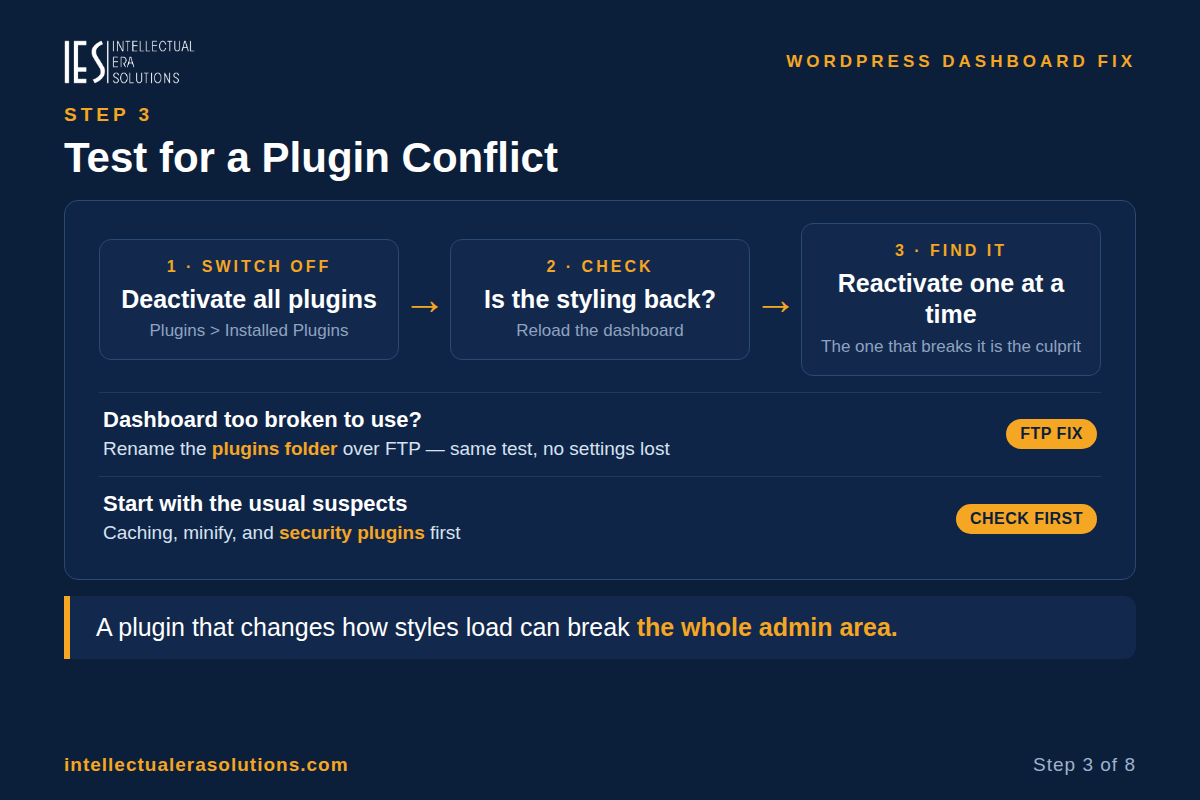
A plugin that changes how styles and scripts load can break the whole admin area. The safe test is to switch all plugins off and see if the styling comes back.
- If you can use the dashboard at all, go to Plugins > Installed Plugins, select all, choose Deactivate, and apply. If the styling returns, reactivate the plugins one at a time, reloading after each, until the dashboard breaks again, that plugin is the culprit. Start with caching, minify, and security plugins.
- If the dashboard is too broken to use, do the same test over FTP or your hosting file manager: rename the
pluginsfolder insidewp-contenttoplugins-old. That switches off every plugin at once without deleting any settings. If the styling returns, rename it back, then rename the folders inside it one at a time until the dashboard breaks again.
If the dashboard is still unstyled with every plugin off, the fault is not a plugin. Move on to Step 4.
Step 4: Switch off script concatenation
By default, WordPress joins the admin area’s JavaScript and CSS files into single combined files to load faster. On some servers that combined file fails to load, and the whole dashboard loses its styling. Switching the combining off is a standard, safe fix.
Open your hosting file manager or FTP, find wp-config.php in the site’s main folder, and add this line above the line that says “That’s all, stop editing!”:
define( 'CONCATENATE_SCRIPTS', false );Save the file and reload the dashboard. This only changes how WordPress delivers admin files, not your content, theme, or plugins. If it fixes the dashboard, leave the line in place.
Step 5: Check HTTPS and mixed content
If the site loads over HTTPS but the admin styles are requested over plain HTTP, browsers block them and the dashboard shows up unstyled.
- Go to Settings > General and confirm both “WordPress Address (URL)” and “Site Address (URL)” start with
https://, nothttp://. If they still sayhttp://, change both and save. - If the site sits behind a proxy or CDN, ask your host to check that WordPress knows the connection is secure.
Step 6: Reinstall WordPress core
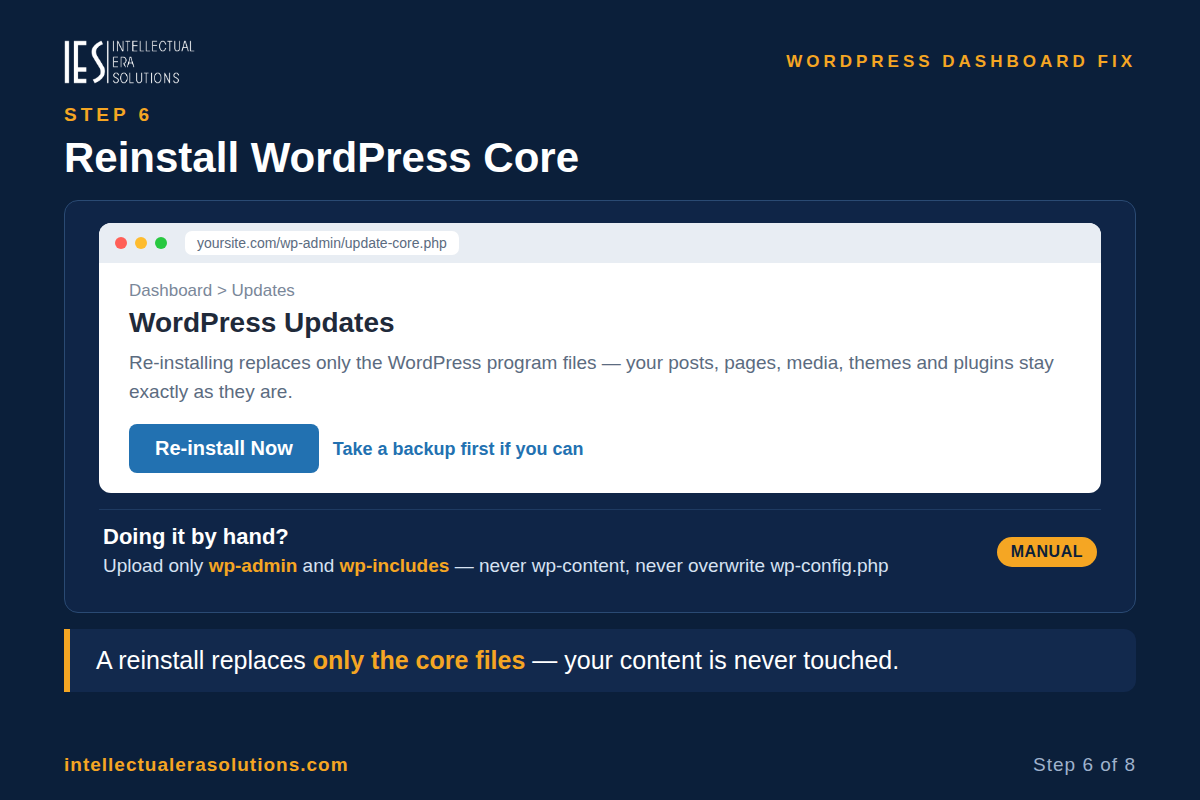
If the styling broke during an update, a core file may be damaged or missing. Reinstalling WordPress core replaces only the WordPress program files. It does not touch your posts, pages, media, themes, plugins, or settings. Take a backup first if you can.
- Go to Dashboard > Updates and click Re-install Now. WordPress downloads a fresh copy and replaces the core files; your content, plugins, and themes stay exactly as they are.
If the dashboard is too broken to reach the Updates screen, do it by hand: download a fresh copy of WordPress from wordpress.org and upload only the wp-admin and wp-includes folders (plus the loose files in the main folder), overwriting the old ones. Never upload the fresh wp-content folder, and never overwrite your wp-config.php file.
Step 7: Check .htaccess and file permissions
- Check .htaccess. Open the
.htaccessfile in the site’s main folder (and check whether one also exists insidewp-admin). Look for rules that mentionload-styles.phporload-scripts.php, some security plugins block these files by mistake. If you find such a rule, remove it (keep a copy of the file first), and reload the dashboard. - Check file permissions. As a baseline, folders should be 755 and files 644. If the
wp-adminorwp-includesfolders have tighter permissions, the server cannot read them, fix them through your hosting file manager or FTP. Never set anything to 777 to “make it work”; that leaves the site open to anyone. If you are unsure, ask your host. Do not guess.
Step 8: Ask your host
If every step above has been tried and the dashboard is still unstyled, the cause is on the server, and only the host can see it. Tell them the exact facts: when it started, what changed just before it (an update, a new plugin, a host move), whether the public website still loads, and which steps you already tried. Ask them to check the server error log and whether load-styles.php and load-scripts.php are returning errors, and whether the PHP version suits your WordPress version.
If the dashboard loads but is very slow rather than unstyled, our slow WordPress guide shows how to measure it and fix it.
How to Know It Is Fixed
- The dashboard looks normal again, the left menu is styled, the boxes have colour and spacing, and the buttons work.
- Check it in a private window and a second browser: a private window skips your browser’s cache, so you see the live dashboard.
- Click through Posts, Pages, Plugins, and Settings and confirm they all load styled, not just the dashboard home.
- Watch it for a day. If the styling breaks again after the same action, the cause is still there. Note the exact page and go back to Step 3 with that detail.
Frequently Asked Questions
Why does my WordPress dashboard look broken but my website is fine?
Because the public site and the admin area load different files. The dashboard’s styling comes through load-styles.php and load-scripts.php in the wp-admin folder, if those files are blocked, cached wrongly, or damaged, only the admin area loses its styling. A completely blank white screen is a different fault. See our White Screen of Death guide.
Is my site hacked if the dashboard has no styling?
Not usually. It is almost always a cache, plugin, or failed-update problem. If the public site also shows strange content, redirects, or warnings, work through our hacked-site guide as well, but a plain unstyled admin on its own is not a sign of a hack.
What does CONCATENATE_SCRIPTS do?
WordPress joins the admin area’s small JavaScript and CSS files into a few combined files so the dashboard loads faster. define( 'CONCATENATE_SCRIPTS', false ); in wp-config.php switches that combining off, so each file loads on its own. On some servers the combined file fails to load; switching it off fixes the styling and is safe to leave in place.
Will reinstalling WordPress delete my posts or plugins?
No. Reinstalling core from Dashboard > Updates > Re-install Now replaces only the WordPress program files (wp-admin, wp-includes, and the main-folder files). Your posts and settings live in the database, and your themes, plugins, and uploads live in wp-content, which a correct reinstall does not touch. Take a backup first anyway.
Need Help Fixing Your WordPress Dashboard?
A dashboard you cannot use means you cannot update, publish, or manage your site, and guessing at the cause can make it worse. If the steps above have not fixed it, or you would rather not edit files yourself, we can help. Intellectual Era Solutions provides WordPress maintenance and emergency WordPress troubleshooting, with WordPress development and IT consulting for clients worldwide.
Contact us through our website, or email us at info@intellectualerasolutions.com, and tell us when it started, what changed just before it, and whether your public website still loads. We will find the real cause and get your dashboard working again.